
Analysis
Here, you can add and manage terrain analysis results, enabling a detailed evaluation of the surface characteristics and their impact on the project layout.
The Analysis tool is used to manage terrain analysis results in the Helios 3D palette. It supports the creation, transfer, display, freezing, and deletion of analysis results that are used to evaluate terrain-related project conditions.
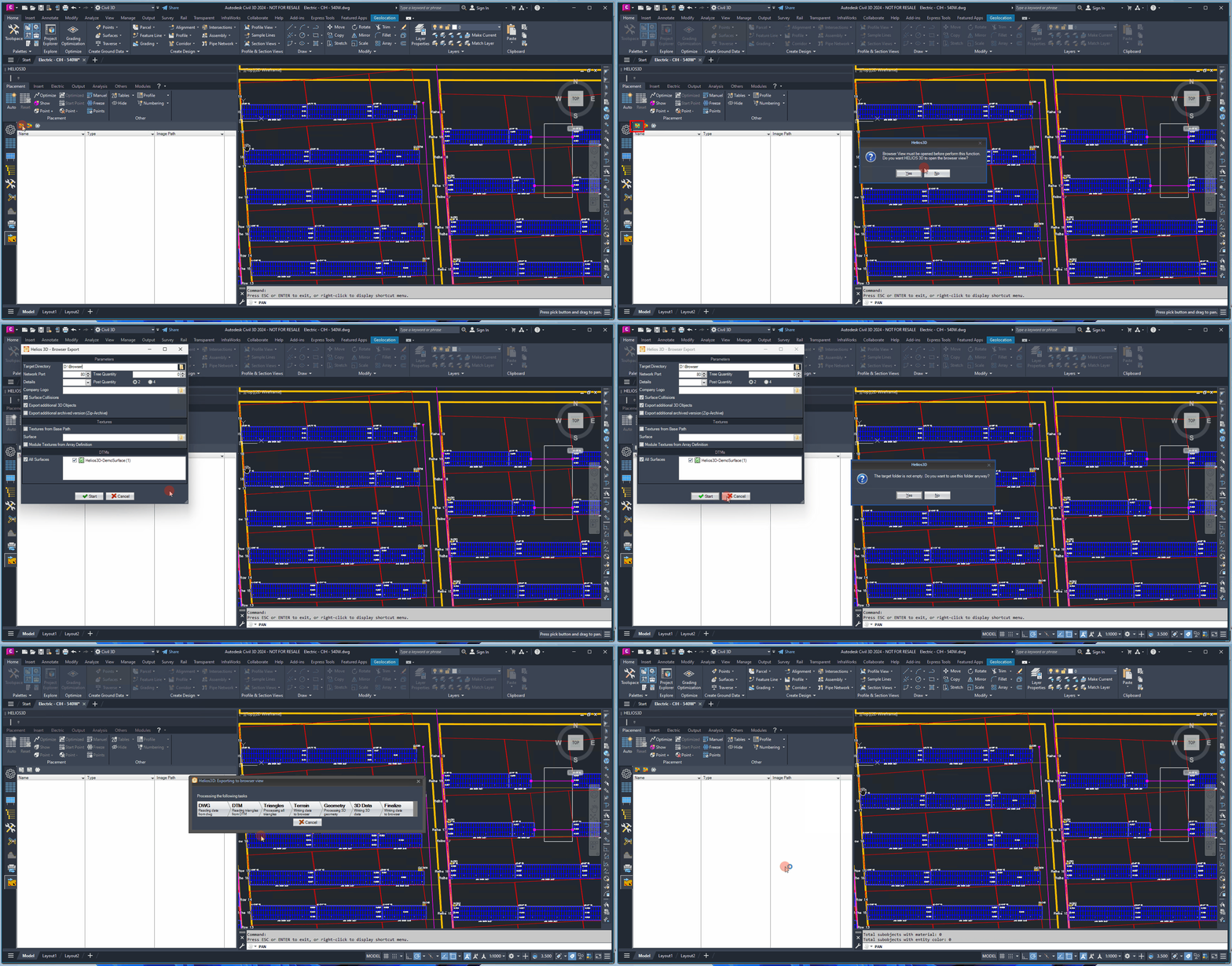
Use Add Terrain Analysis when a new terrain evaluation is required for the current project. The calculation is performed in the web browser view and the resulting analysis can be transferred back into the CAD system.
Add Terrain Analysis

This function allows you to generate a terrain analysis for a web browser in the upcoming dialog and then transfer the result back to the CAD system. If a browser export has not been initiated yet, this function can optionally start the export process as well.
If no active browser export is available, Helios 3D can start the browser export process before the analysis dialog is opened. After the browser export connection is established, the dialog for creating a new terrain analysis is displayed.
Delete Terrain Analysis

This function deletes the result entry and its associated contents for the selected terrain analysis.
Use Delete Terrain Analysis only when the selected terrain analysis result is no longer needed. The command removes the result entry and its associated contents for the selected terrain analysis.
Freeze Results

This function freezes the layers of any analysis displayed in the list below, preventing further changes or updates to those layers while keeping them visible.
When a terrain analysis is added, the calculation occurs in the web browser view. If no active connection to a running browser export is found, the system will initiate the browser export process. Once this is done, the following dialog will appear.
Freeze Results keeps the displayed analysis layers visible but prevents further changes or updates to those layers. This can be useful when an analysis result should remain available as a stable visual reference during further planning steps.
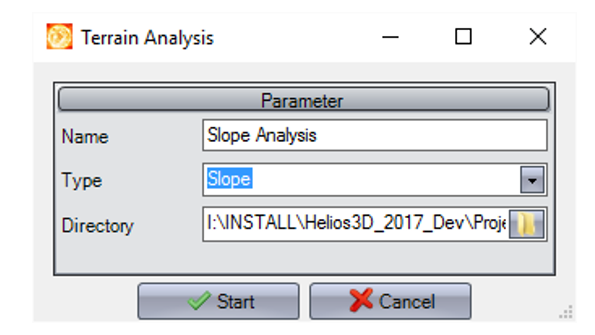
The dialog for a new terrain analysis defines how the result will be named, which analysis type will be started, and where the result file will be stored.
Name
Enter a name for the analysis. The result will be displayed under this name in the Helios 3D palette.
Type
Select the type of analysis you want to start by clicking . The result will then be transferred to and displayed within the application.
Directory
Choose the directory where the result file will be saved. By default, the result image will be saved to the project folder.
By default, the result image is saved in the project folder. Choose a different directory only if the analysis result should be stored outside the standard project structure.
Notes and limitations
This page describes the general Analysis tool workflow. Detailed explanations of individual analysis types, interpretation of result images, browser export requirements, and possible troubleshooting cases should be documented in separate sections or linked related articles.