-
Introduction
-
Database Application
-
Overview of Commands
-
Layout
-
Electric
-
Evaluation
-
Data Export
-
Presentation
-
Analysis
-
===============
-
FAQ – Frequently Asked Questions
-
-
- How is the calculation of the row distance / shadow cast?
- How can I add a prototype-drawing to Helios 3D?
- What does the message “This drawing was last saved by an earlier version of one of the following products:” mean?
- How can I improve the performance of huge projects?
- Why does the Selection Dialog for Prototype Drawings not appear?
- Why are Project Numbers not Managed automatically?
-
Common Erros
-
Step-by-step Tutorials
-
Useful Hints and Tips
-
Releases
- Helios 3D Update 2026.0.2.0
- Helios 3D Update 2026.0.1.5
- Helios 3D Update 2026.0.1.4
- Helios 3D Update 2026.0.1.3
- Helios 3D Update 2026.0.1.2
- Helios 3D Update 2026.0.1.1
- Helios 3D Update 2026.0.1.0
- Helios 3D Update 2025.0.1.4
- Helios 3D Update 2025.0.1.3
- Helios 3D Update 2025.0.1.2
- Helios 3D Update 2025.0.1.1
- Helios 3D Update 2025.0.1.0
- Helios 3D Update 2024.0.1.7
- Helios 3D Update 2024.0.1.6
- Helios 3D Update 2024.0.1.5
- Helios 3D Update 2024.0.1.4
- Helios 3D Update 2024.0.1.3
- Helios 3D Update 2024.0.1.1
- Helios 3D Update 2024.0.1.0
- View all articles ( 4 ) Collapse articles
Rain Analysis

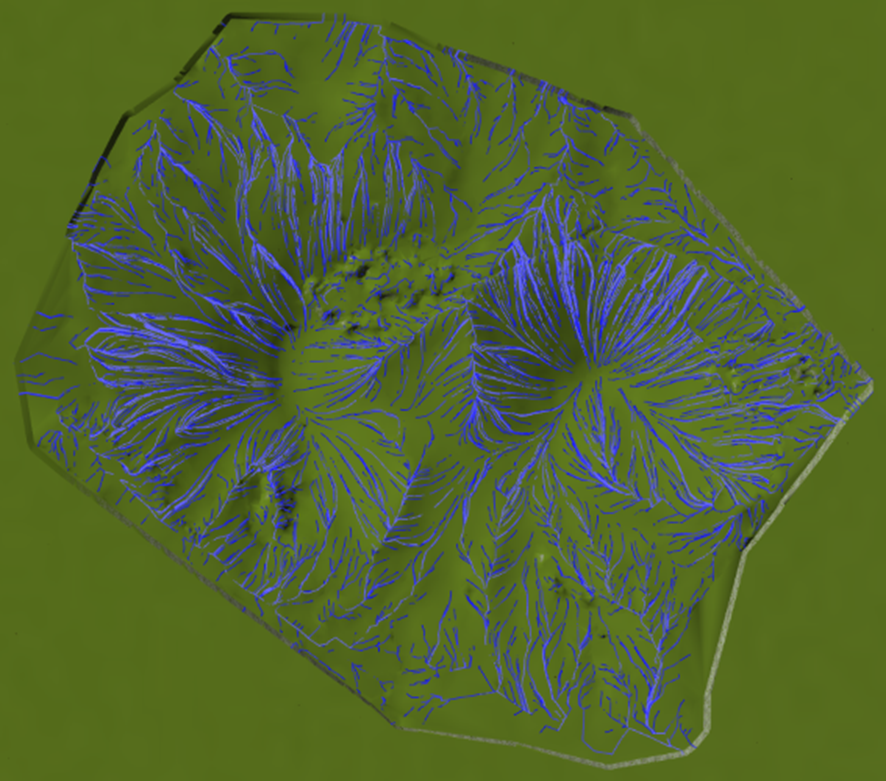
In the water flow and rain menu, there are several analysis functions designed to assess the impact of water flow and rainfall on the terrain. These functions help simulate and analyze how water behaves across the surface, which is essential for evaluating drainage and erosion potential in the area.
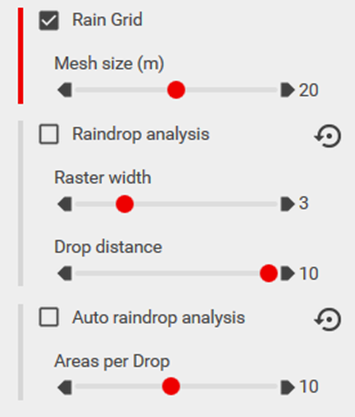
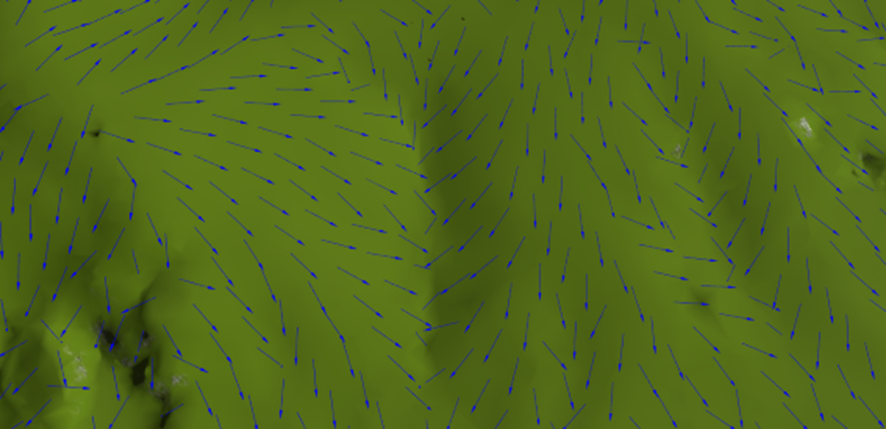
Under the Rain Grid, arrows are displayed to indicate the direction of water flow across the terrain. The slider mesh size allows you to adjust the density of these arrows, determining how many arrows are shown based on the selected grid resolution. A smaller mesh size will display more arrows, offering a finer level of detail in the water flow analysis.
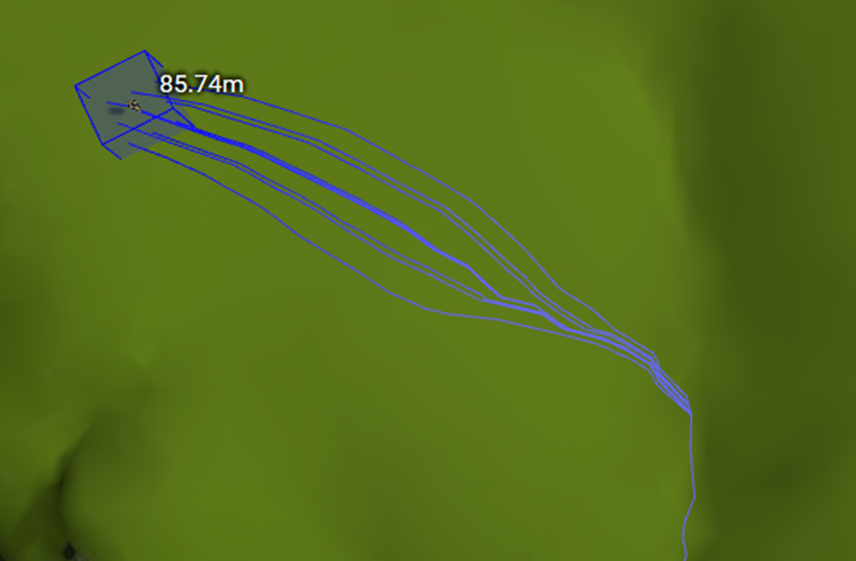
Under Raindrop analyses, you can set a raster width and drop distance to simulate and display the water flow starting from the position of the mouse cursor when clicked. The raster width controls the spread of the water flow, while the drop distance determines how far the water travels from the initial point. This allows for a detailed analysis of water movement across the terrain based on user-defined parameters.
Auto Raindrop analysis displays a raindrop analysis by automatically placing a raindrop at the center of each surface triangle, covering the entire surface. This analysis helps visualize how water would disperse across the surface based on the terrain’s shape, providing a comprehensive view of water flow patterns throughout the area.