
Buttons of the Array Generator
This article explains the buttons available in the Array Generator of Helios 3D. These buttons are used to create, copy, edit, rename, delete, save, regenerate and synchronize array definitions.
Array definitions describe the technical and geometric structure of PV mounting tables before they are inserted into a project drawing. The buttons therefore control both the local array definition in the drawing and, where applicable, the corresponding database data.
Use this page when you need to understand which button changes an array definition, which button updates the array drawing, and which button synchronizes data between the drawing and the database.
General workflow note
A typical workflow starts with creating or copying an array definition, editing its parameters, saving the definition and checking the generated array drawing. If the geometry in the drawing is no longer up to date, the array should be regenerated before it is used for placement.
Some buttons affect only the current editing state, while others update the drawing geometry or synchronize data with the database. Before overwriting local data or deleting an array definition, make sure that the selected array definition is the correct one.
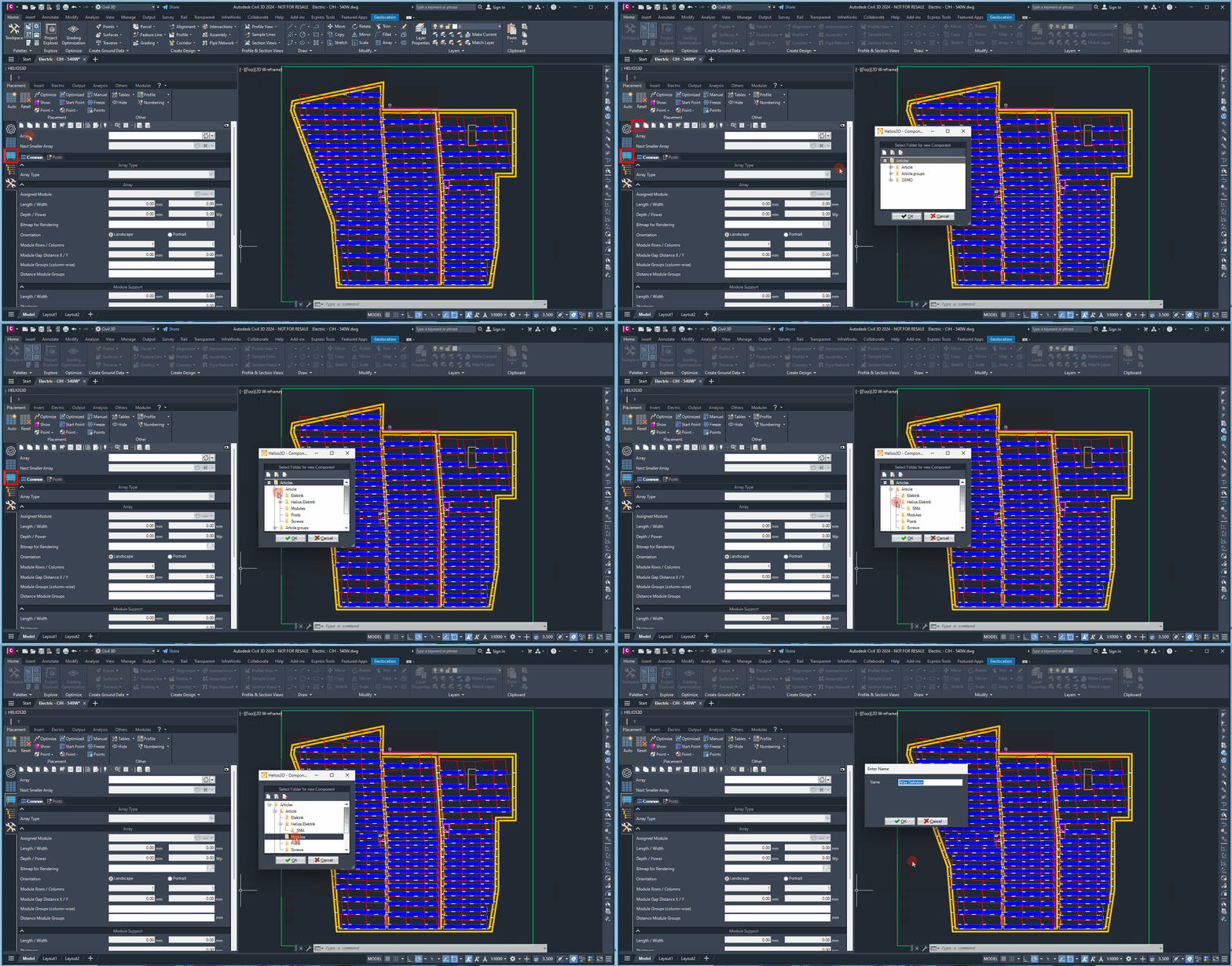
New Array Definition
Opens the dialog for creating a new array.
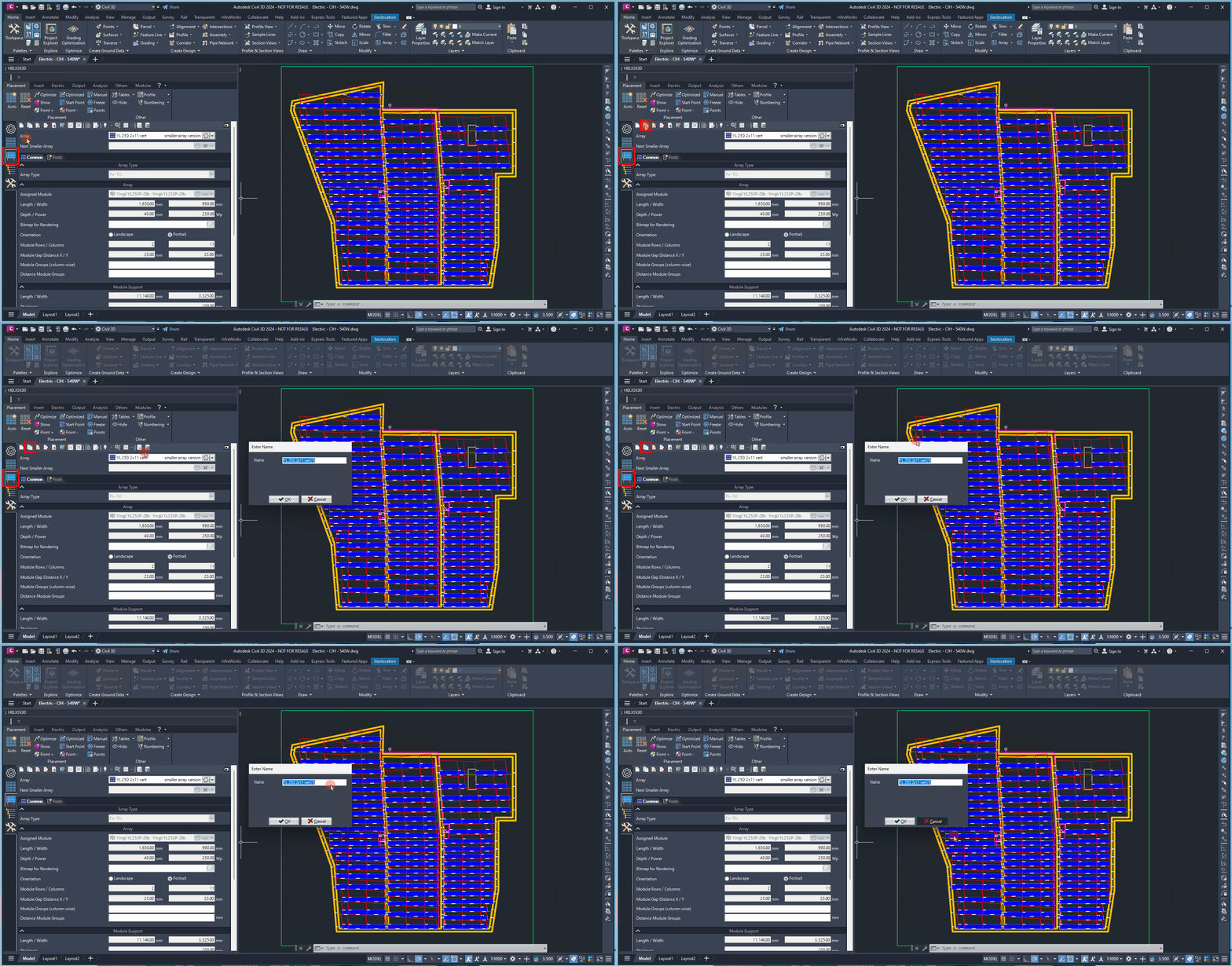
Copy Array Definition
Opens the dialog for entering a name for the copied array. This feature is useful when you need to create another array definition with similar data, such as for a smaller table.
Edit Array Definition
Switches to editing mode, allowing all input fields to become editable.
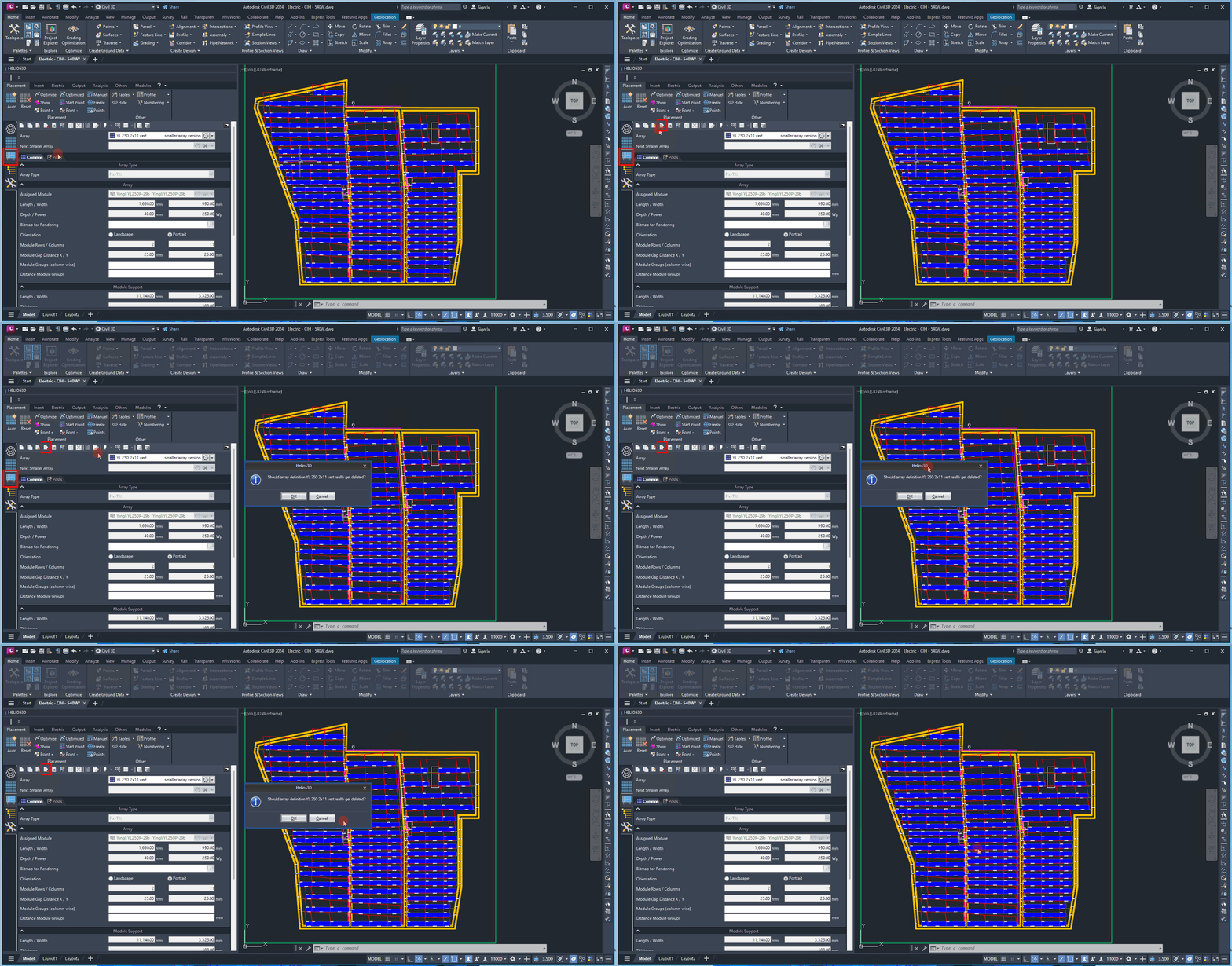
Delete Array Definition
Important:
Deleting an array definition removes the selected definition from the current Array Generator context. Before deleting, check whether the definition is still required for the project, for derived array variants, or for existing placement workflows.
Not on the page clearly identifiable: whether existing arrays already placed in a project drawing are automatically affected by deleting the definition. This should be reviewed technically before adding a stronger warning.
Deletes the current array definition.
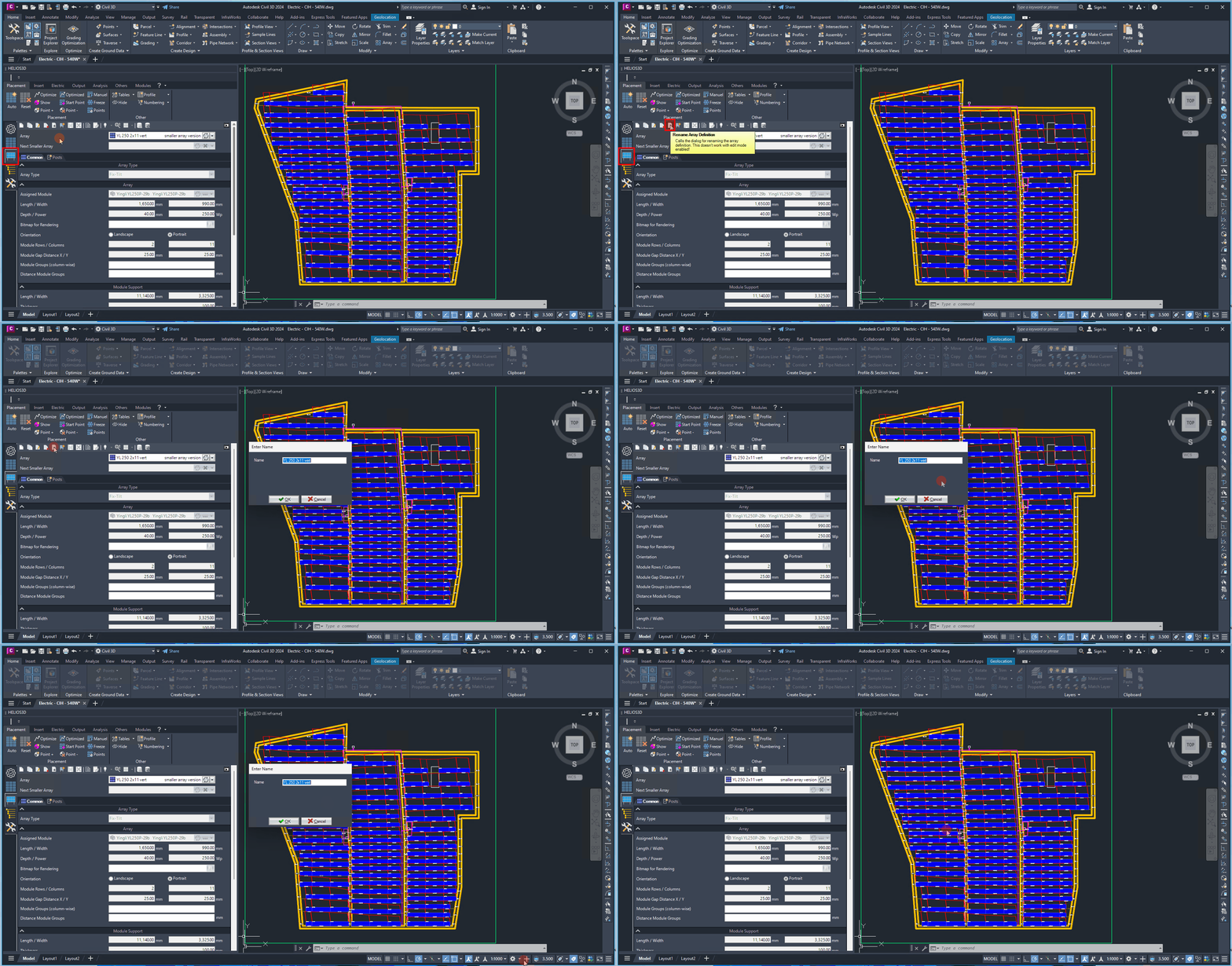
Rename Array Definition
Opens the dialog for renaming.
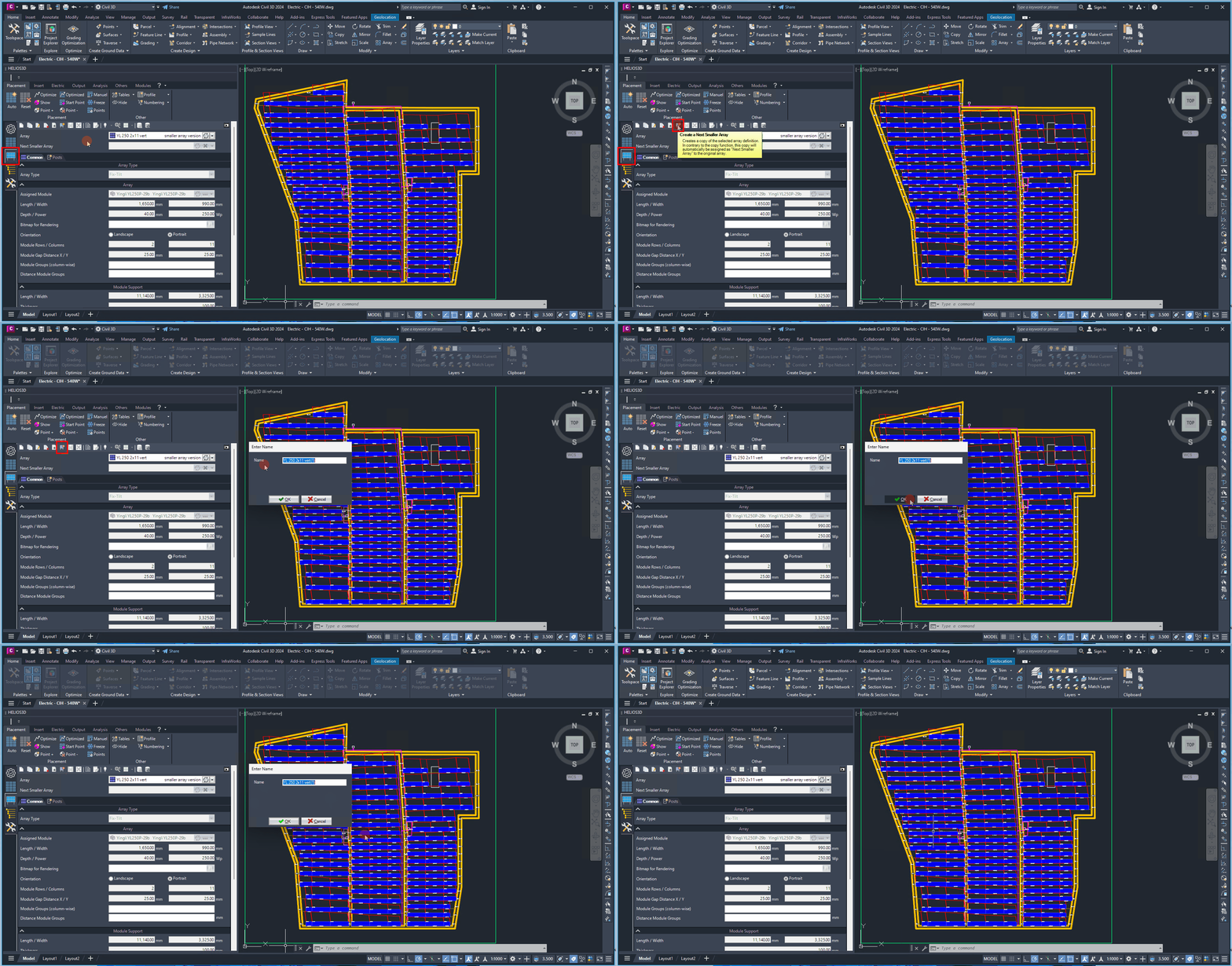
Create Next Smaller Array
Creates a copy of the selected array definition. In contrary to the copy function, this copy will automatically be assigned as “Next Smaller Array” to the original array.
The “Create Next Smaller Array” function is useful when a PV table type has related variants, for example a full table and a shorter table variant. The created copy is automatically linked to the original array definition as its next smaller array.
This is relevant for layouts where smaller table variants may be needed to fill remaining areas, adapt to boundary conditions or handle layout transitions. This workflow is plausible from the Helios 3D and PV planning context, but the exact placement behavior should be reviewed before describing it as an automatic placement rule.
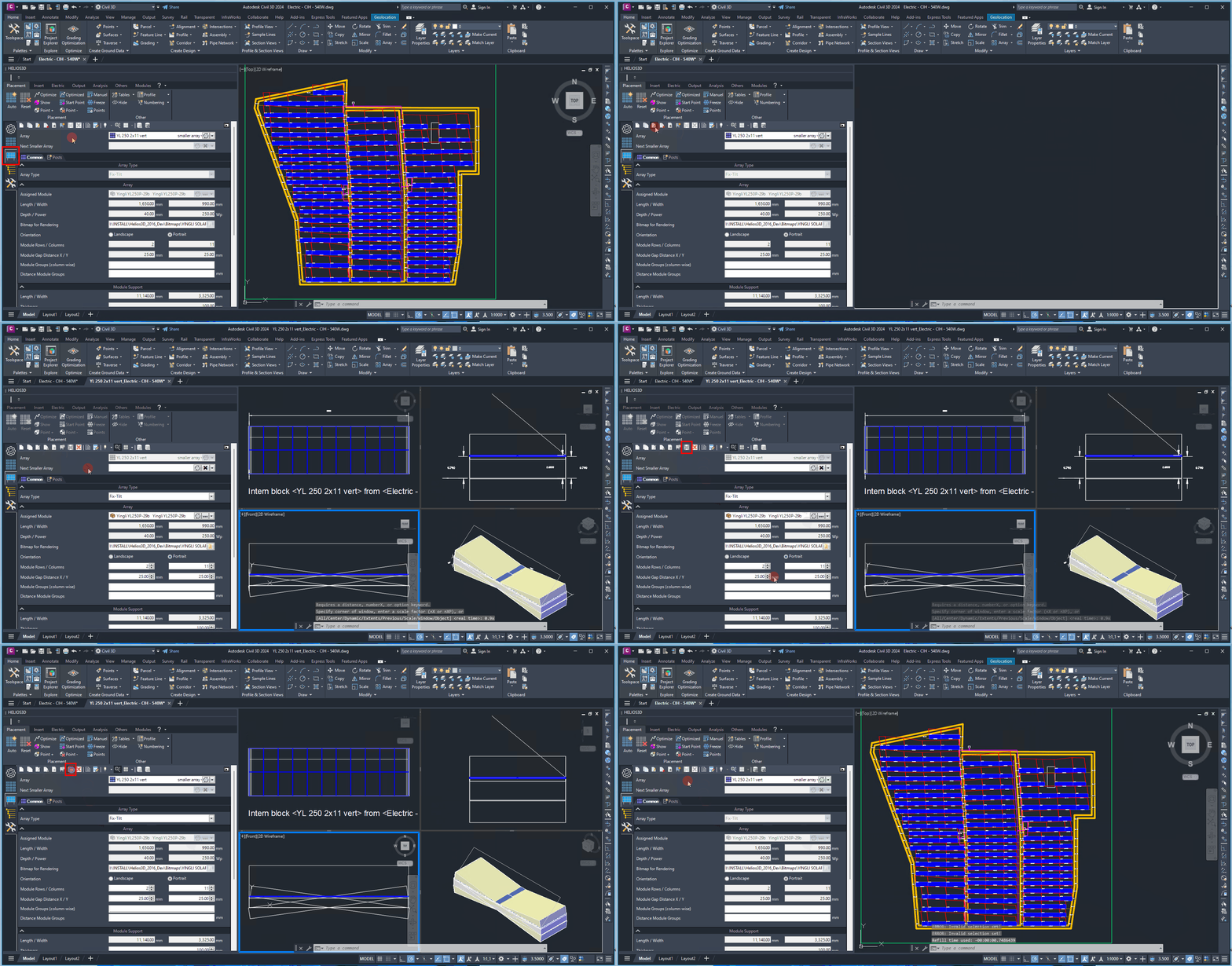
Save Array Definition
Saves the changes made to the current array definition.
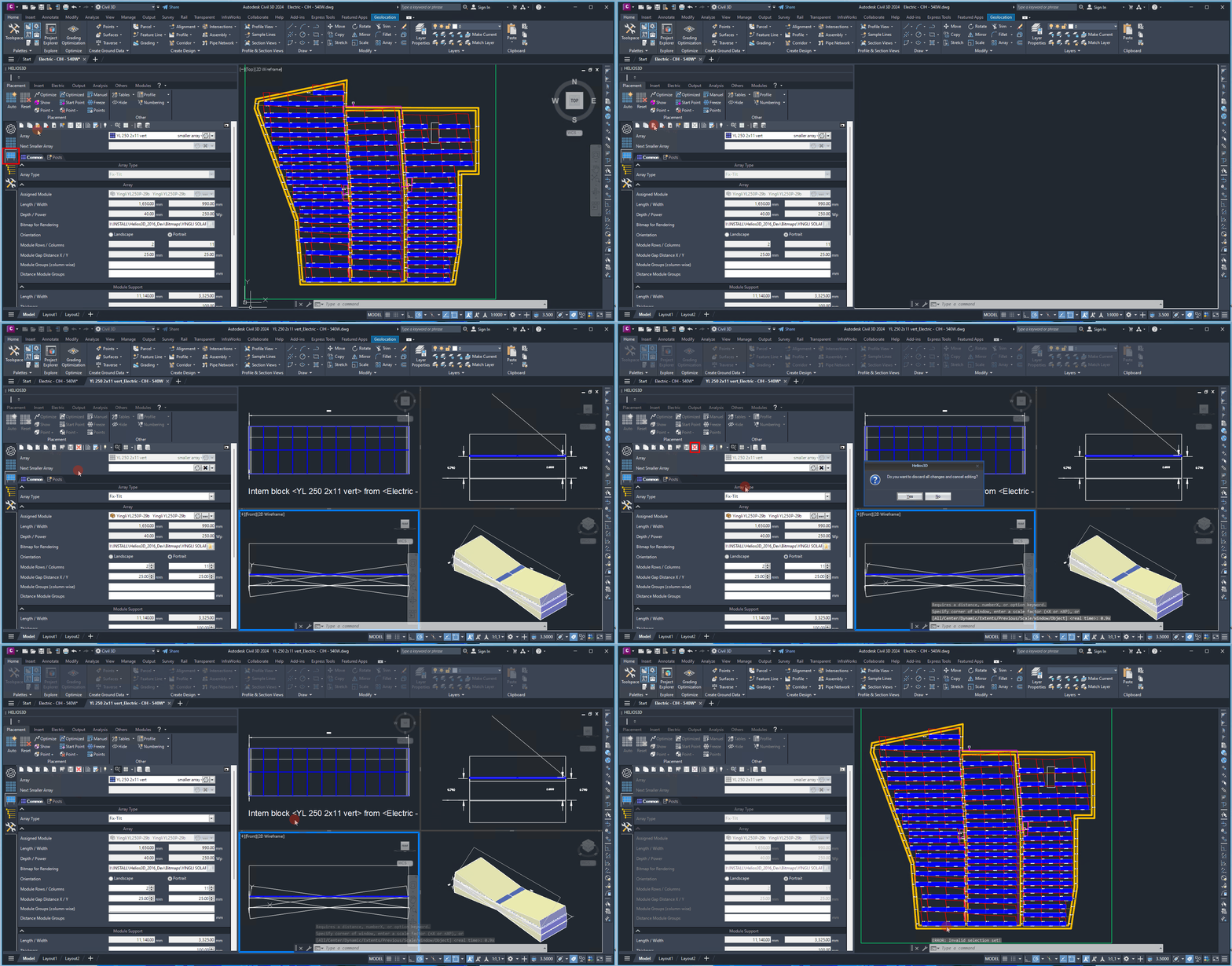
Cancel Editing
Cancels the editing of the current array definition.
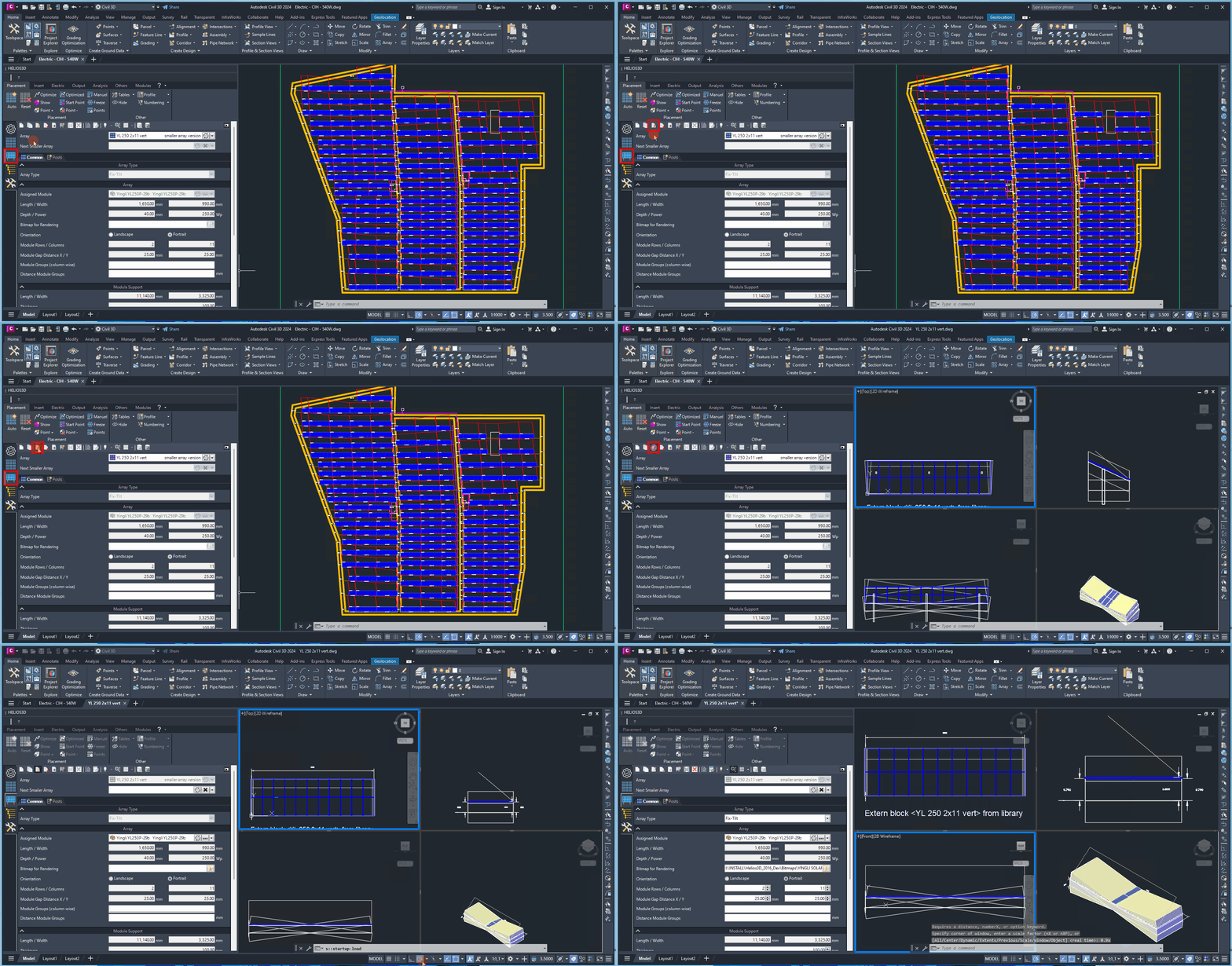
Open Array Drawing
The array drawing contains the generated geometry of the selected array definition and shows it in multiple views. This drawing is required so that the array definition can later be inserted into a project drawing.
If the array definition has been changed after the drawing was last generated, the drawing may be outdated. In this case, regenerate the array before using it for insertion or further layout work.
Opens the array drawing. This geometry, shown in four different views, is needed for inserting an array definition into a drawing. Please note that the drawing must always be newer than the last change to the array definition.
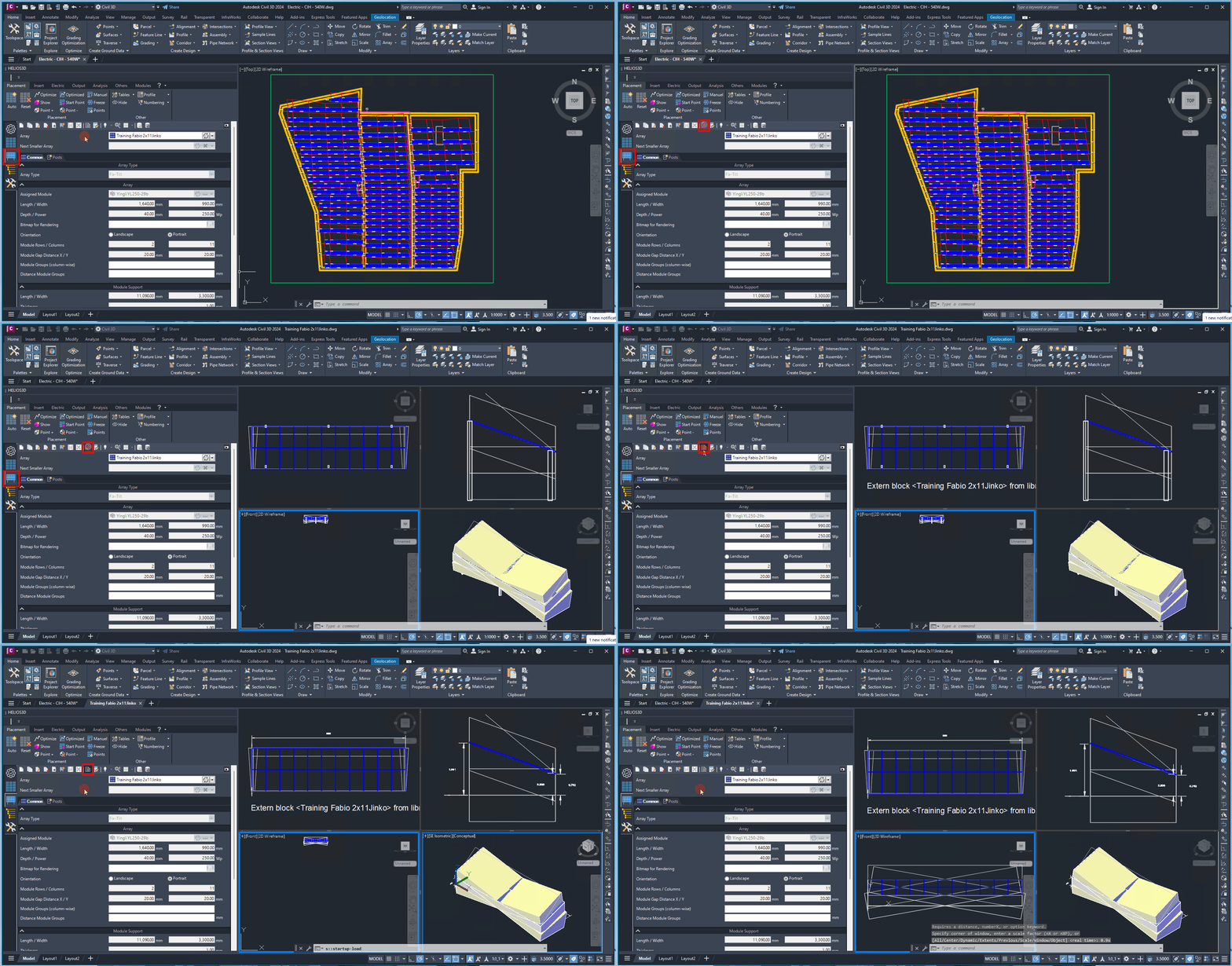
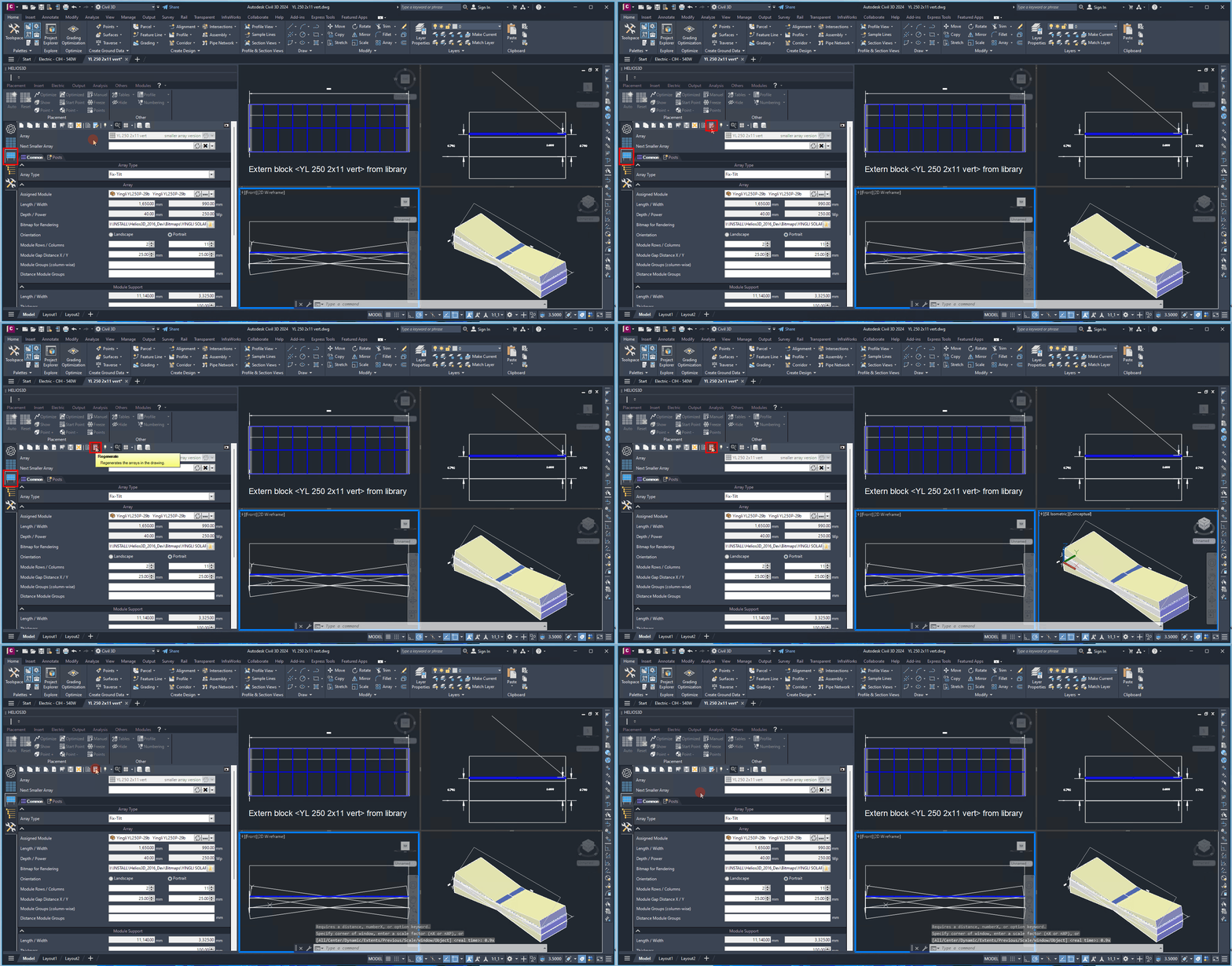
Regenerate
Use “Regenerate” when changes to an array definition are not reflected automatically in the array drawing. Regeneration updates the generated array geometry based on the current definition data.
Typical cases include changed parameters, modified visibility settings, or situations where Helios 3D reports that the array drawing is older than the array definition.
Regenerates the arrays from the drawing. This is necessary for changes that do not trigger an automatic refresh. Before an array is inserted, Helios 3D will check if the drawing is more recent than the array definition. If not, you must use this button to regenerate the array.
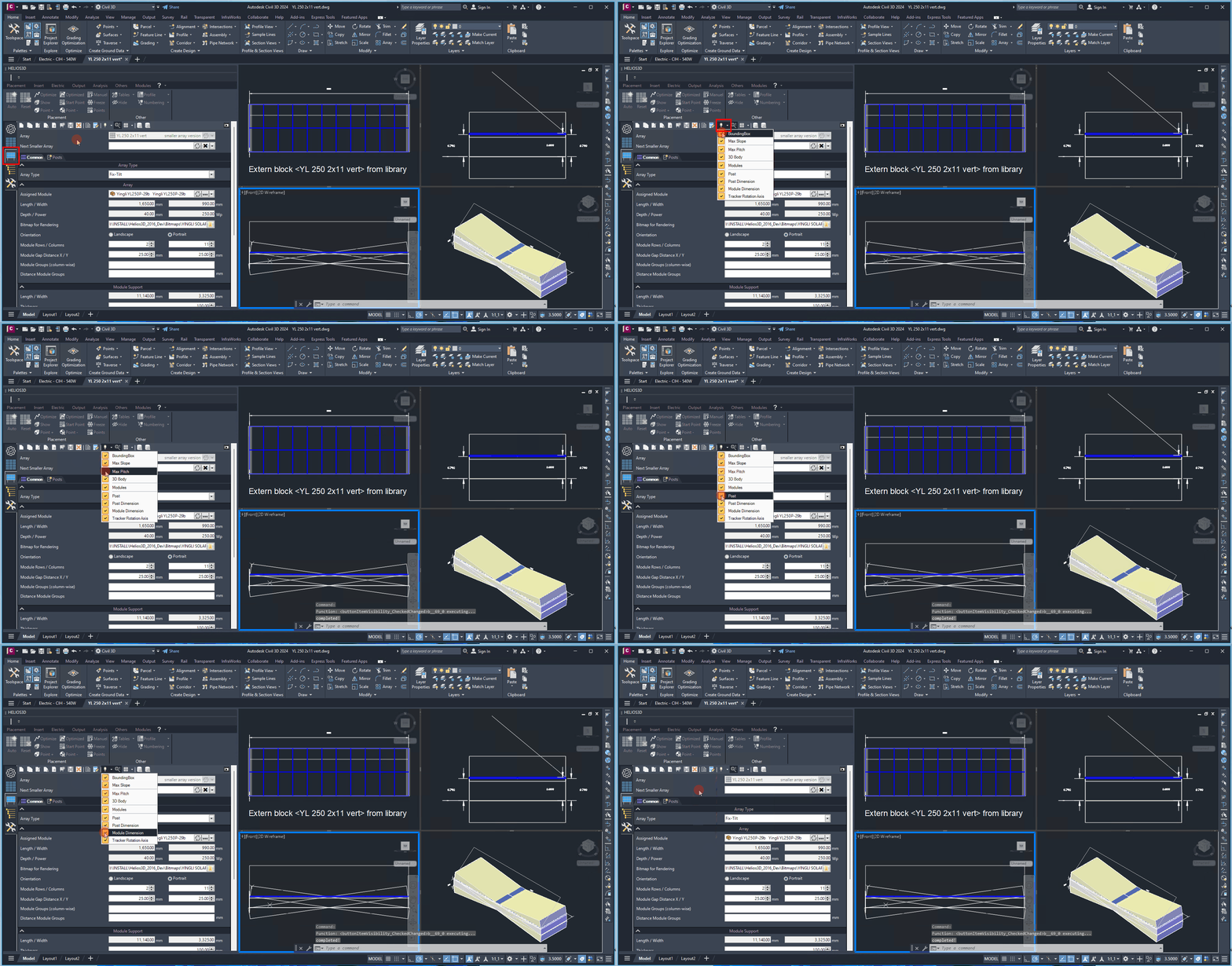
Visibility
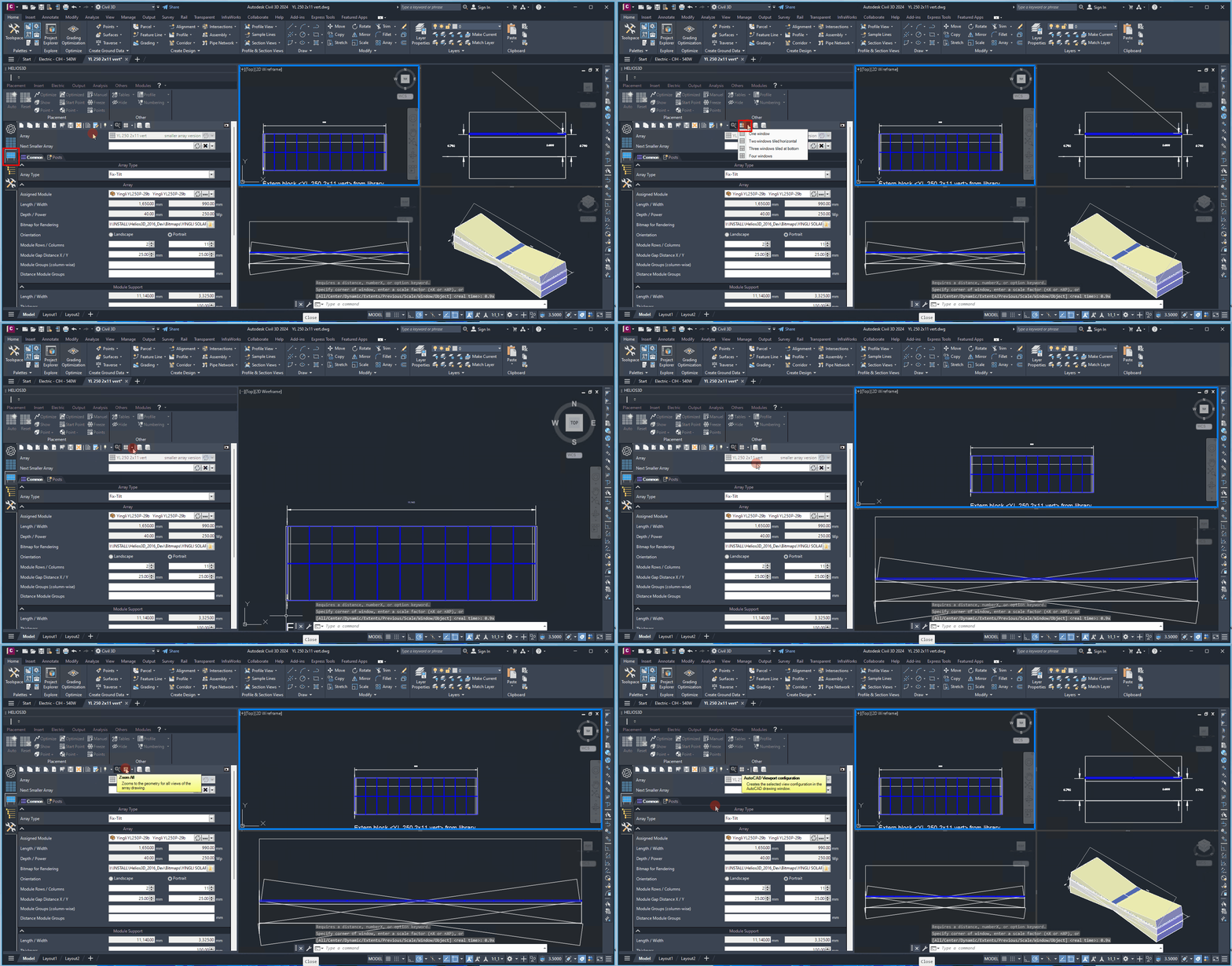
It allows the visibility of certain drawing elements to be modified. Once the visibility of an element is changed, the drawing must be regenerated. A detailed explanation will be provided in a subsequent section.
Zoom All
Automatically zooms to the geometry in all views of the DWG array. The button retains its on/off status, so when set to „on“, any change to the definition causes all views to zoom in.
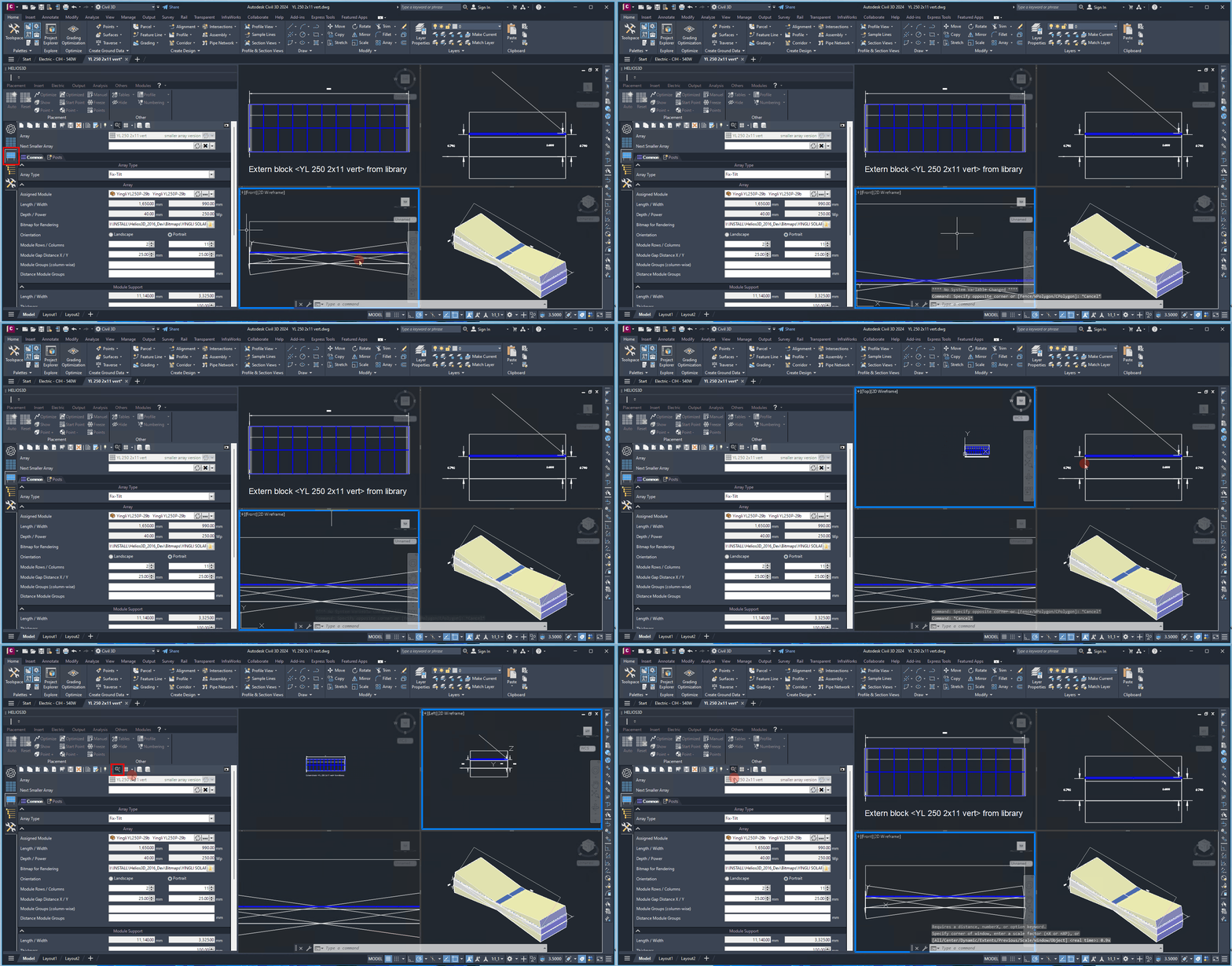
Views
Automatically adjusts the zoom to fit the geometry in all views of the DWG array. The button retains its on/off state, so when set to „on“, any change to the definition will cause all views to zoom in accordingly.
Save to Database
Saves the internal block and all parameters of the selected array definition to the database.
Since changes to an array definition automatically update the database records, this command is not required after modifying an array definition.
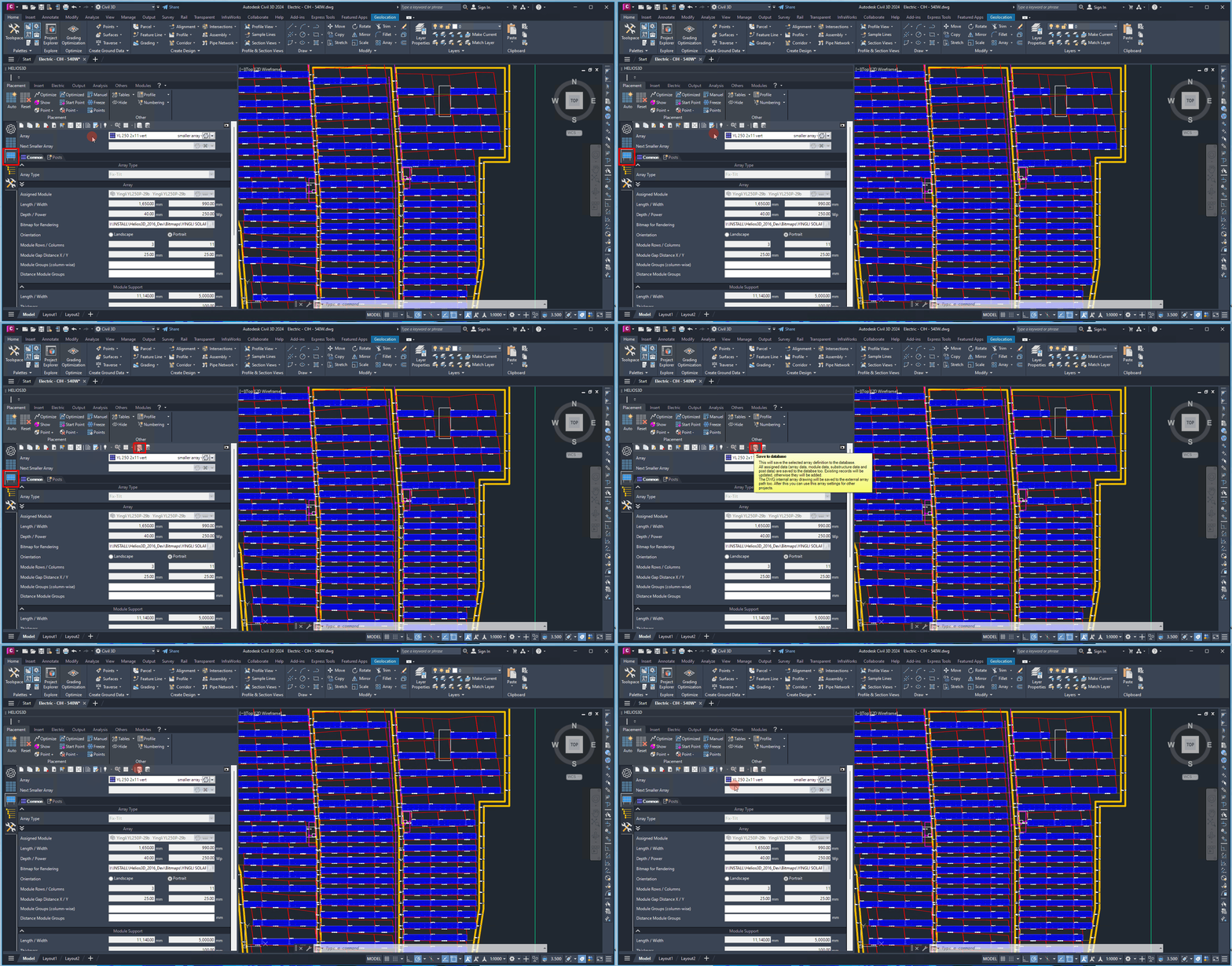
“Save to Database” writes the selected array definition, its internal block and its parameters to the database. According to the current page text, normal changes to an array definition automatically update the database records, so this command is not usually required after every edit.
Use this function mainly when a manual database synchronization is required or when support asks you to explicitly write the selected definition to the database.
Read from Database to the Drawing
Retrieves all data of the selected array definition from the database and overwrites the local data.
This allows you to update the local array definition if its parameters are outdated compared to the database record.
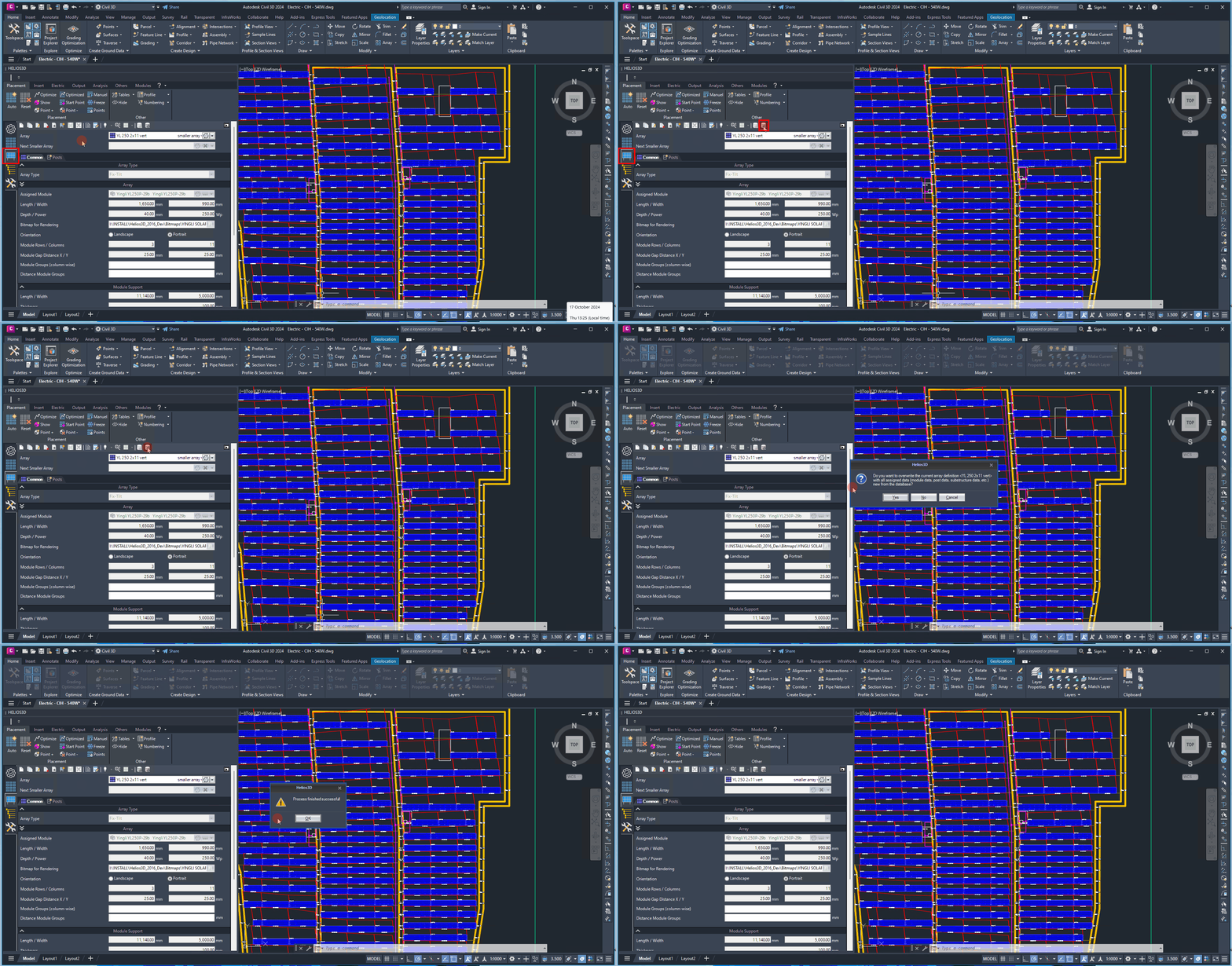
“Read from Database to the Drawing” retrieves the selected array definition from the database and overwrites the local data in the drawing. Use this command when the local array definition is outdated compared to the database record.
Before using this command, check whether local changes still need to be saved. Otherwise, unsynchronized local changes may be replaced by the database version.