
Others
The Others ribbon contains supporting tools for system refresh, data synchronization, display options, block and layer handling, and basic drawing-editing tasks. These commands are not part of one single PV design step, but they help keep the current DWG, the connected database, and the Civil 3D drawing environment consistent during the planning process.
Use this ribbon when you need to refresh project data, compare local drawing data with database records, check system information for support, adjust temporary display behavior, manage reusable blocks, control object layers, or prepare lines and polylines for terrain-related workflows.
These commands are especially useful during project setup, drawing preparation, layout review, terrain preparation, troubleshooting, and support analysis. Before using commands that overwrite DWG or database article data, make sure that the current drawing and the connected database belong to the intended project environment.
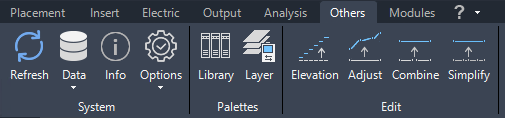
Command Group System
he System command group provides tools for refreshing internal data, exchanging article data between the drawing and the database, opening system information, and temporarily changing selected display options.
These commands are mainly used when the drawing state, the database state, or the visible behavior of Helios 3D objects needs to be checked or updated.
Important:
Some commands in this group can permanently overwrite article information in either the local DWG or the database. Use these commands only when you are sure which data source is correct.
Refresh Data

This function reloads all data from the drawing and the database, ensuring that all internal objects are updated. It also attempts to resolve communication issues between Helios 3D and Autodesk Civil 3D, which can arise due to problems such as uncaught exceptions, potentially causing commands to malfunction.
Use Refresh Data as a first troubleshooting step if commands do not react as expected, if object information appears outdated, or if the connection between the current drawing, Helios 3D, and Autodesk Civil 3D seems inconsistent.
This command does not replace a project check or a database validation. It reloads available drawing and database information and attempts to rebuild the internal state used by Helios 3D commands.
Data exchange between DWG and database
The local article data in a drawing may not match the corresponding records in the database, for example, if a DWG file has been copied to another Helios 3D installation.
The import/export commands offer two options:
- Read all data from the database and overwrite the local data in the drawing.
- Overwrite the database records with the local data from the current DWG file.
Choose the direction of the data exchange carefully:
- Use Import article data from database when the database is the trusted source and the local article information in the DWG should be updated.
- Use Export article data to database only when the local article information in the current DWG is the trusted source and should replace the corresponding database records.
This situation may occur after copying DWG files between workstations, projects, databases, or Helios 3D installations.
Warning:
Importing or exporting article data can permanently replace existing information. Before continuing, verify that the current drawing, project, database connection, and article records are the correct ones.
Import article data from database

Imports the information for any article used in the local DWG file and overwrites the DWG information permanently. Afterward, any new table placements, electrical placements, or other actions will use the updated local article data.
This command is useful if the article definitions in the database have been corrected or updated and the current drawing should use those database values again.
After importing, check affected placements, electrical objects, and reports that depend on article data. Existing drawing objects may still need to be reviewed if their geometry or configuration was created with outdated information.
Export article data to database

Exports all local articles from the DWG to the database. Existing records in the database will be replaced.
Use this command only if the article data stored in the current DWG is intentionally meant to become the database version. This can be relevant when a drawing contains corrected local article data that should be reused in the connected Helios 3D environment.
Warning:
Existing database records are replaced. This may affect other drawings or projects that use the same article records. Confirm the database connection and the article content before exporting.
Info

This function is for informational purposes only and has no additional functionality. It provides quick access to details about the current system, which can be useful when seeking support.
No settings can be changed in this section! To make any changes, please go to the database. You will need the appropriate access rights to modify any settings there.
The Info section is mainly intended for support and diagnostics. It helps identify the active program version, database version, installation path, drawing path, project assignment, drawing assignment, database server, database name, and current user information.
When reporting an issue to support, include the relevant information from this dialog together with the project name, drawing name, and a short description of the command or workflow that caused the problem.
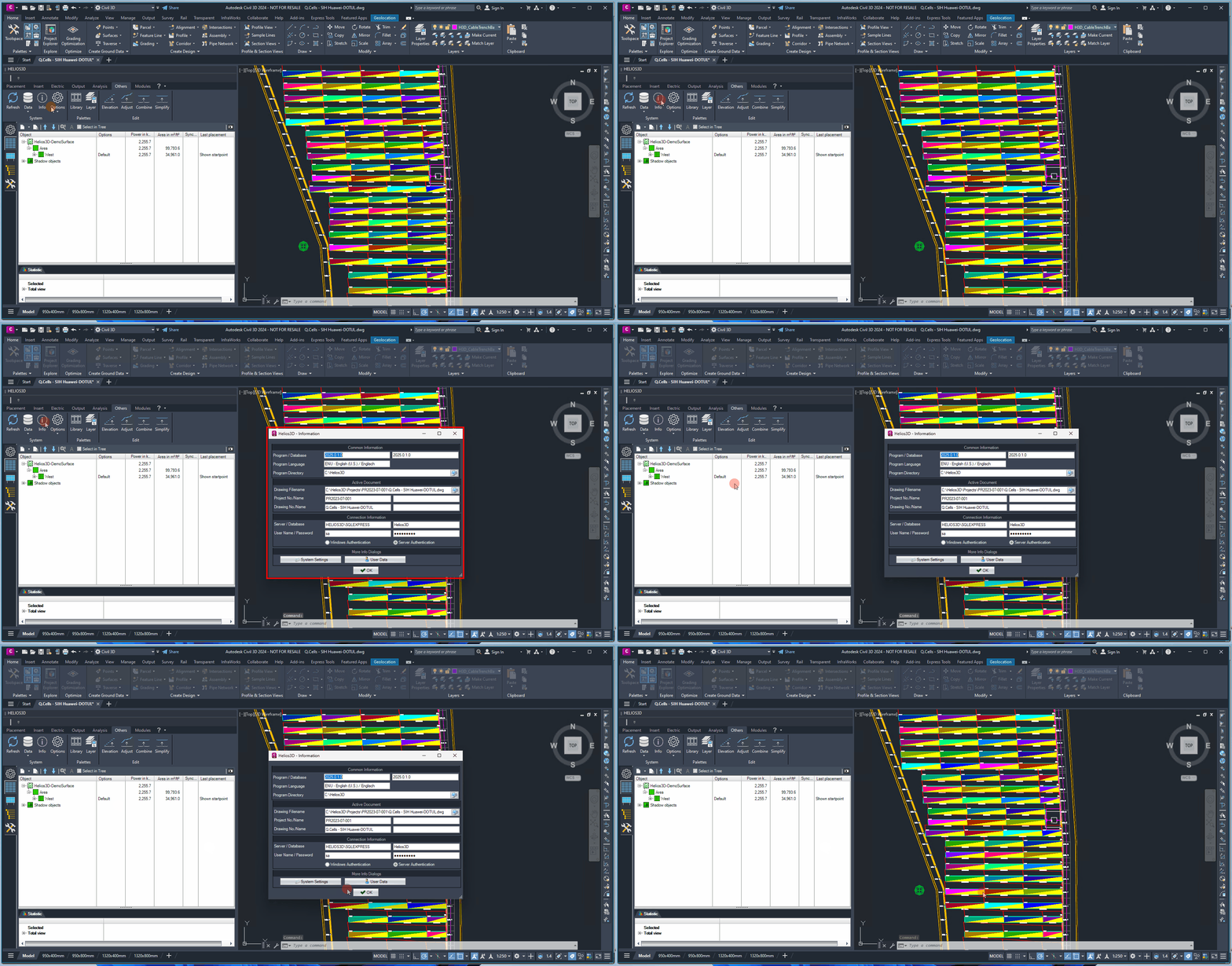
Program / Database
This section displays the version numbers of both the program and the database.
Program Language
This section shows the language of your installation.
Program Directory
This section displays the full program path of your installation.
Drawing Filename
This section displays the full folder path of the current drawing.
Project No./Name
This section displays the number and name of the project associated with the current drawing.
Drawing No./Name
This section displays the number and name of the current drawing.
Server / Database
This section displays the name of the database and the server where it is located.
User Name / Password
Here you can see the username and the encrypted password you used for database login.
System Settings
The following figure illustrates the settings for the currently active system. A detailed explanation of these system settings is provided in section „System Settings“.
User Data
This dialog displays the data of the user currently connected to the database, as shown below. This information corresponds to the data in the User Management section of the database application. A detailed description of User Management can be found in section „User Management“.
Options
Here, you can toggle between various display options and enable features like RollOver tips or the radial menu. Changes made in this section temporarily override system or user settings. These adjustments are not saved; upon restart, Helios will revert to the original values from the corresponding default settings (e.g., user settings).
The options in this group are intended for temporary display behavior in the current Helios 3D session. They can be used to quickly test whether RollOver tips or the radial menu are helpful for the current task.
Because these changes are not saved permanently, use the corresponding database or user settings if the behavior should be changed for future sessions.
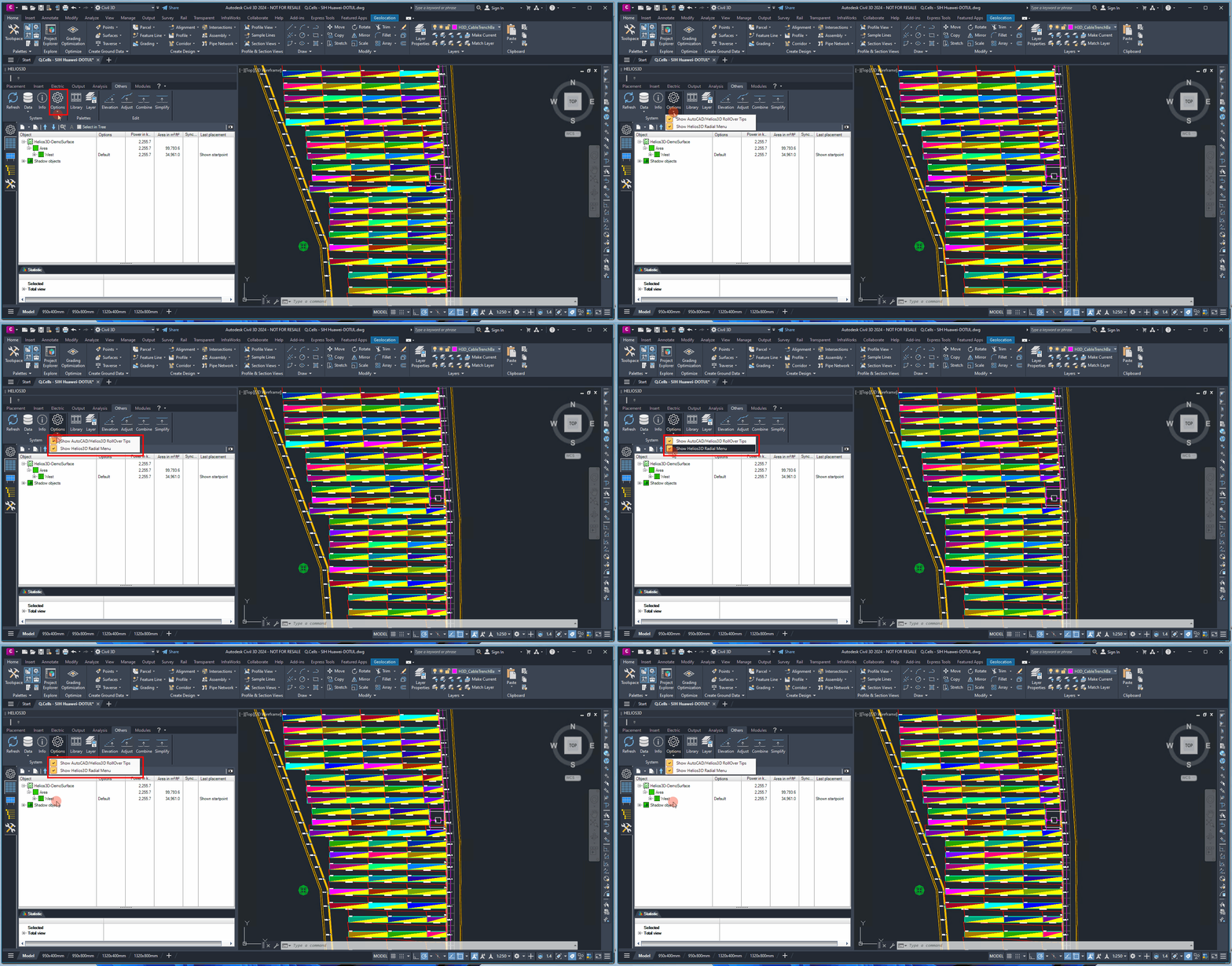
Show AutoCAD / Helios3D RollOver Tips

When active, the AutoCAD RollOver tip is replaced for objects that are registered with Helios 3D.
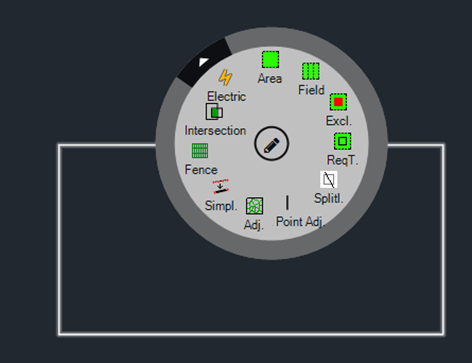
Show Radial Menu

When active, a radial menu can be accessed by pressing the “Alt” key while hovering over an AutoCAD object that contains functions for quick access. This behavior is similar to the RollOver tip, but combined with the “Alt” key.
For the default setting, please refer to section „User Management“.
Command Group Palettes
The Palettes command group provides access to additional palettes for reusable blocks and layer handling. These tools support drawing organization, object visibility, and the management of external or predefined drawing content.
They are useful when preparing a DWG, placing reusable symbols, managing presentation or export placeholders, or controlling the visibility of Helios 3D object layers.
Open Library

The Block Library is a tool for managing and inserting predefined blocks into a Autodesk Civil 3D drawing. These blocks can serve as placeholders, which are later replaced by objects with specific properties for web browser export.
The block library can help standardize frequently used drawing content across projects. Typical use cases may include symbols, placeholders, presentation objects, or blocks that are later interpreted during browser or viewer export workflows.
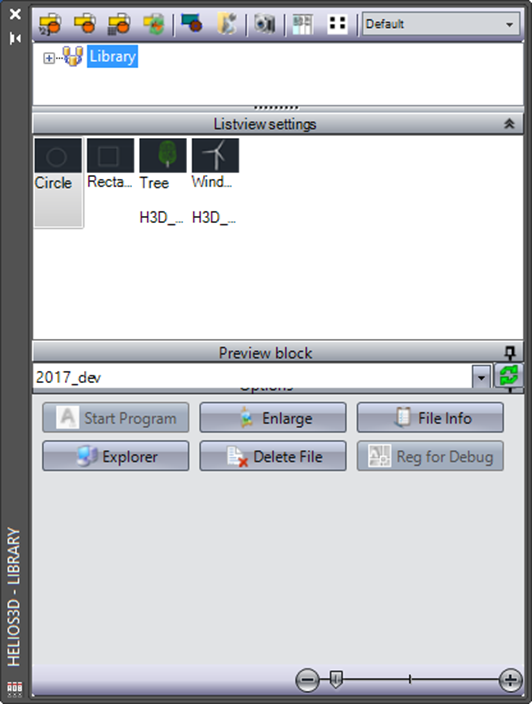
Insert block multiple times

This places the block at the mouse cursor, allowing it to be inserted multiple times by left-clicking.
Insert block once

This places the block at the mouse cursor, allowing it to be inserted with a left click. After the first insertion, the action is completed.
Insert block in row

This allows inserting the block using an insertion pattern (via the Autodesk Civil 3D „row“ command). The first left-click inserts the initial block, followed by three options in the Autodesk Civil 3D command line and context menu, as displayed below.
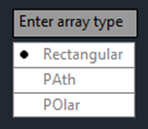
- Rectangular: Inserts the block in a rectangular pattern.
- Path: Inserts the block along a defined path, which can be an existing object, such as a polyline.
- Polar: Inserts the block in a circular pattern, starting from the location of the first click, with the center of the circle defined by the second click.
Select the insertion mode according to the required placement pattern. Use single insertion for one object, multiple insertion for repeated manual placement, and row-based insertion when a regular rectangular, path-based, or polar pattern is needed.
Before inserting blocks, check the current layer, drawing scale, insertion point, and block definition to avoid misplaced or incorrectly scaled drawing objects.
Change block

Replaces the block selected in the drawing with the block selected in the library palette.
Use this command when an already inserted block should be replaced by another library block while keeping the drawing workflow within the Helios 3D block library tools.
Create block (wblock)

Creates a new block (using the Autodesk Civil 3D „wblock“ command) from the selected objects and adds it to the chosen library entry.
Use this command to create a reusable external block from selected drawing objects and assign it to a library entry. Before creating the block, verify that the selected objects, base point, layers, units, and object cleanup status are correct.
A clean block definition improves reuse in future drawings and reduces the risk of inserting unnecessary geometry, wrong layers, or incorrect object scales.
Open block as document

Opens the drawing of an external block, including information about the DWG file.
Show block list in detail mode

Shows the block list in detail mode
Show block list in preview mode

Displays the block list with a preview image.
Open Layer Manager

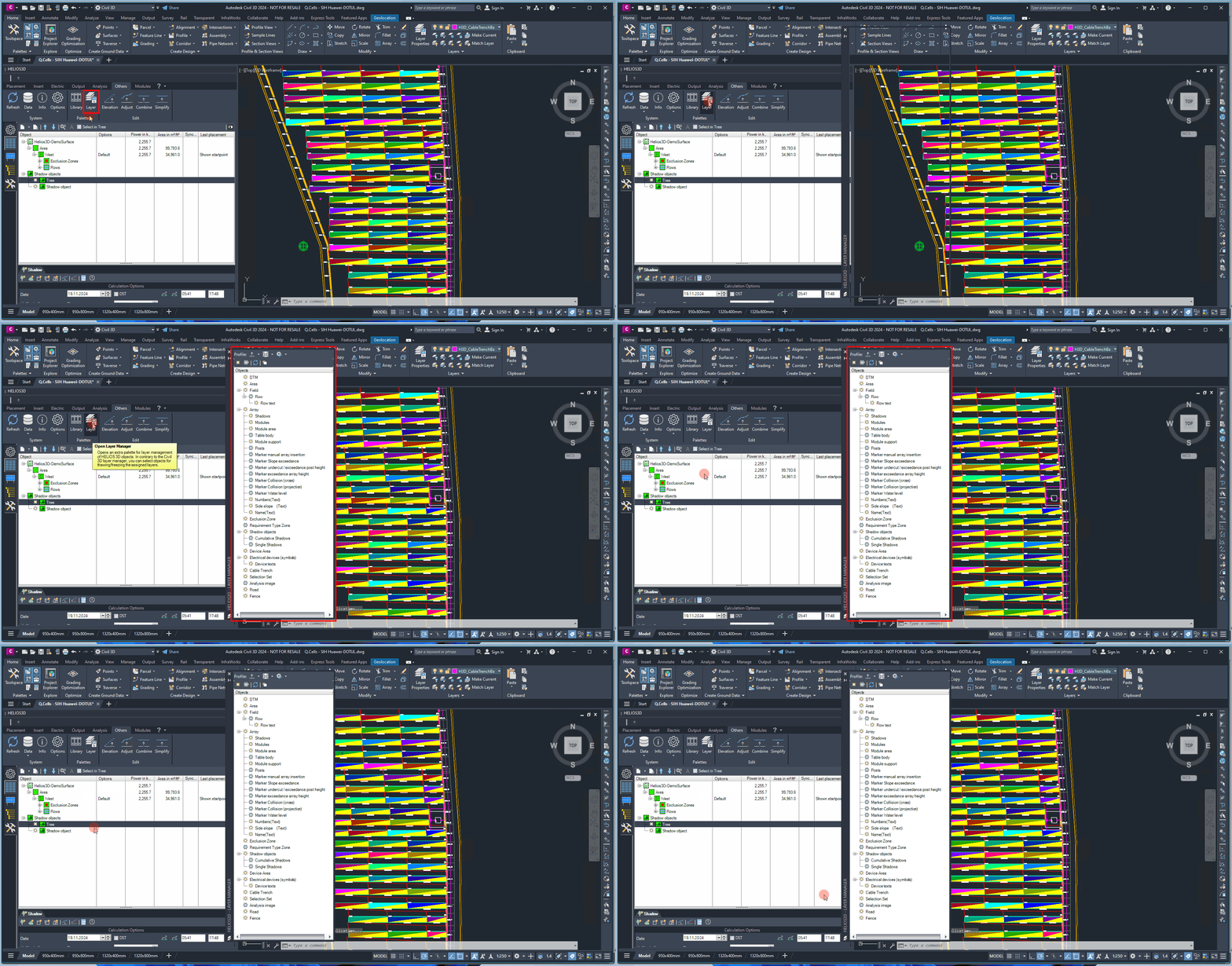
The Layer Manager can be used to freeze or thaw layers that contain the Helios 3D objects listed. If multiple exclusion zones are assigned to different layers, all these layers can be switched simultaneously.
The Layer Manager is useful when many Helios 3D objects are distributed across multiple layers and visibility needs to be controlled consistently. It can help during layout checks, collision review, terrain analysis, exclusion zone review, and drawing cleanup.
Freezing layers can improve drawing clarity, but it can also hide relevant planning objects. If objects appear to be missing, check whether their layer has been frozen.
Thaw All

Thaws all layers that contain registered objects.
Freeze All

Freezes all layers that contain registered objects.
Refresh

Refreshes the list.
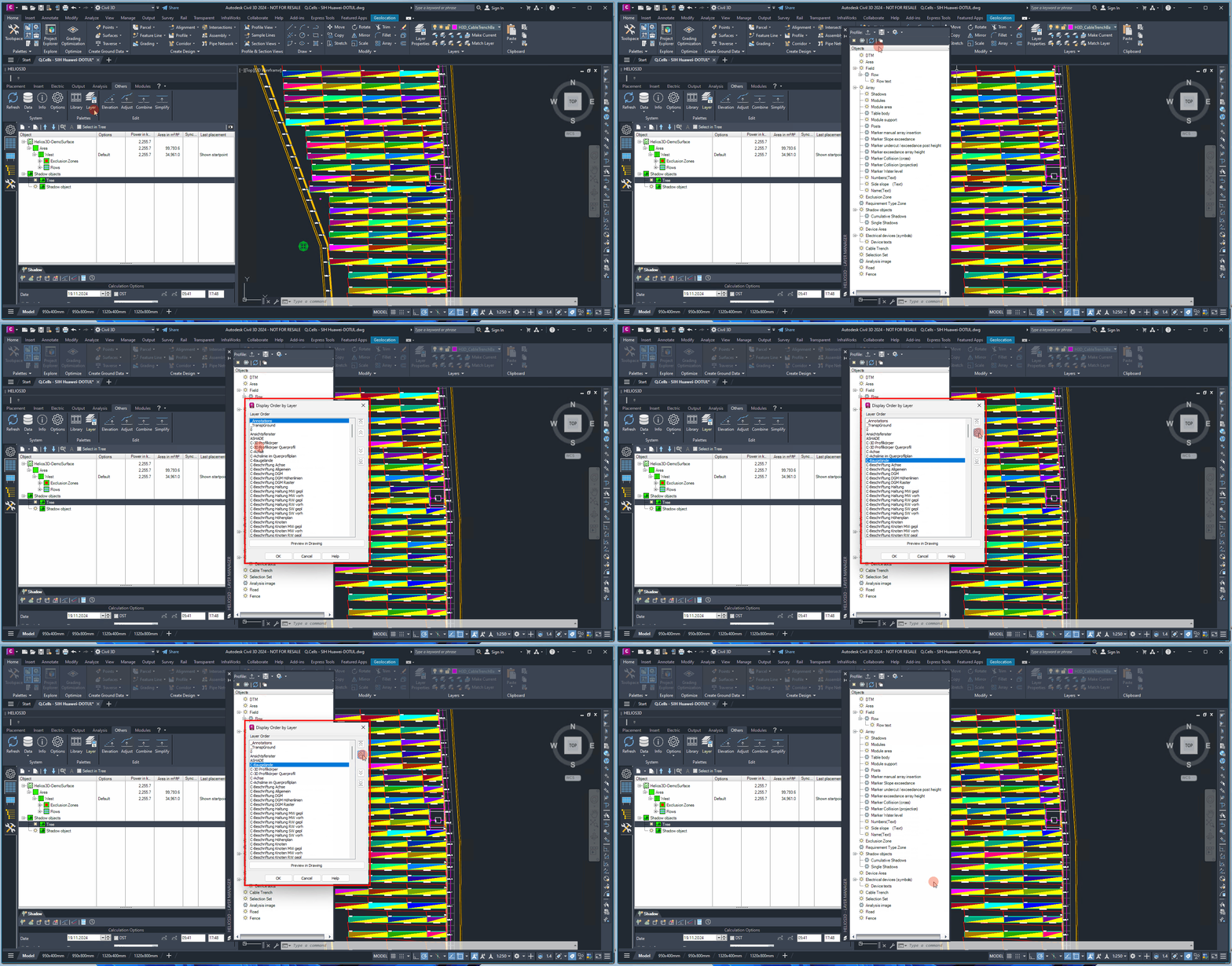
Display Order by Layer

This button activates the AutoCAD command <AecLayerOrder>, which opens a dialog box allowing you to organize the display order of drawing entities based on their insertion layers.
It is particularly helpful for prioritizing Helios3D markers, such as those indicating DTM collisions or slope conflicts, by displaying them above all other drawing elements.
Use this command when important markers or analysis results are hidden behind other drawing entities. Bringing selected object layers to the front can make review markers easier to see during quality checks.
This command affects the display order of drawing entities. It does not change the technical result of the analysis itself.
Command Group Edit
The Edit command group contains tools for preparing and cleaning up line and polyline geometry. These tools are especially relevant when imported survey data, contour lines, or other CAD geometry must be prepared for terrain-related workflows.
Use these commands carefully because they can change line elevations, combine geometry, add definition points, or simplify polylines.
Set Elevation for Lines

To create a DTM (Digital Terrain Model) from polylines, all polylines must be assigned the corresponding z-coordinate (height). This function offers a convenient method for setting the height of each line.
You can enter a start height and a step width, both in meters. The command line will prompt you to enter these values. Afterward, you can select the lines one by one, starting with the line that should be set to the start height. The height will be applied incrementally based on the step width.
This command is useful when contour lines are available as 2D polylines or lines and need elevation values before they can be used for terrain preparation. The start height defines the elevation of the first selected line, and the step width defines the height difference applied to each following selected line.
Select the lines in the correct order. The resulting elevations depend on the sequence in which the lines are selected.
Warning:
Incorrect start height, step width, or selection order can create an incorrect terrain basis. Always review the resulting elevations before using the lines for DTM creation or terrain analysis.

Adjust Line to Surface
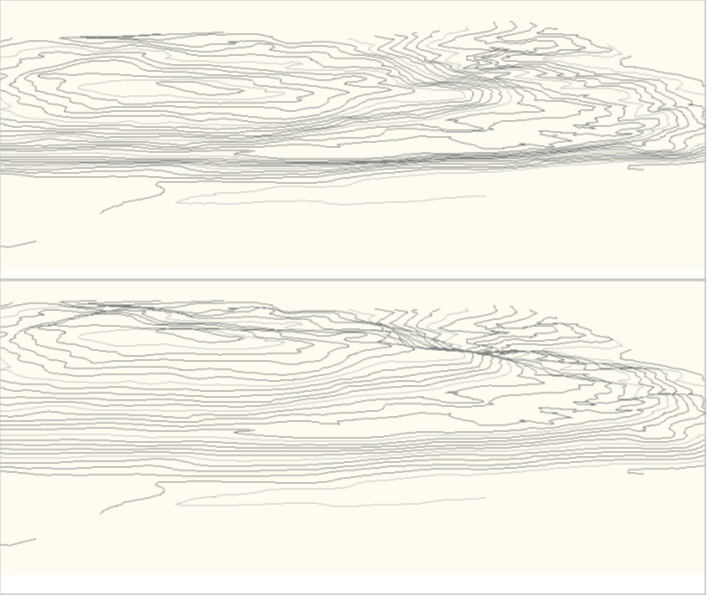
You can lift one or more polylines to match the height of the terrain. This function automatically adds a definition point to the resulting polyline whenever a line segment intersects a terrain triangle, ensuring that the resulting polyline fully aligns with the surface of the terrain.
To reduce the number of definition points in the resulting line to the minimum required, please use the function, which is described in the following section.
This command is useful when a line or polyline should follow the height profile of an existing terrain surface. Additional definition points may be inserted where the line crosses terrain triangles, so the resulting polyline can represent the terrain more accurately.
After adjusting lines to the surface, review the number of resulting definition points. A very high point count may affect performance or make later editing more difficult.
Combine Lines

Some drawings may contain contour line segments that are not connected as a single polyline. This function allows you to combine line segments of the AutoCAD type LINE into a polyline. For this to work, the endpoint of line A must coincide with the endpoint of line B.
When using this function, the command line will first prompt you to select the lines. Afterward, you will be asked to enter the minimum segment length. In the final step, the function can reduce the number of polyline segments by removing any segments shorter than the specified minimum length.
Please note that only lines with the same direction can be combined. Specifically, a start point can only be combined with an endpoint, and an endpoint can only be combined with a start point. It is not possible to combine a start point with another start point, or an endpoint with another endpoint.
Use this command to prepare fragmented contour or survey linework for further terrain processing. The command is only suitable when the line endpoints match and the line direction allows a valid connection.
If the command does not combine selected segments, check endpoint positions, line direction, object type, and whether small gaps exist between the selected objects.
Simplify

This function automatically eliminates a definition point from a polyline if a straight line drawn from the last definition point to the next definition point passes through the current definition point in 2D.
By using this function, you can reduce the number of points in the polyline, which in turn decreases the number of calculation steps required for other Helios operations.
Please note that the simplification is calculated in 2D, meaning the heights (z-coordinates) will be disregarded during this process. You should take this into account when using the polyline later, as the height information will be lost.
Use Simplify only when reducing the number of polyline points is more important than preserving the original 3D elevation information. This can improve performance for later Helios 3D operations, but it may make the simplified polyline unsuitable for workflows that require accurate height data.
Warning:
Because simplification is calculated in 2D and z-coordinates are disregarded, do not use the simplified result as a height-accurate terrain source unless this behavior is intended and verified.