
Common Tab
The Common tab defines the basic geometric and module-related parameters of an array definition. These settings are used to describe the selected array type, assign the PV module, define the module orientation, and calculate the module arrangement within the array panel.
In Helios 3D, the values entered or loaded in this tab form the basis for the following array definition steps, such as module support, posts, and array drawing. Correct entries in the Common tab are important because they affect the physical size of the array, the number of modules, the gap distances, and the resulting placement geometry.
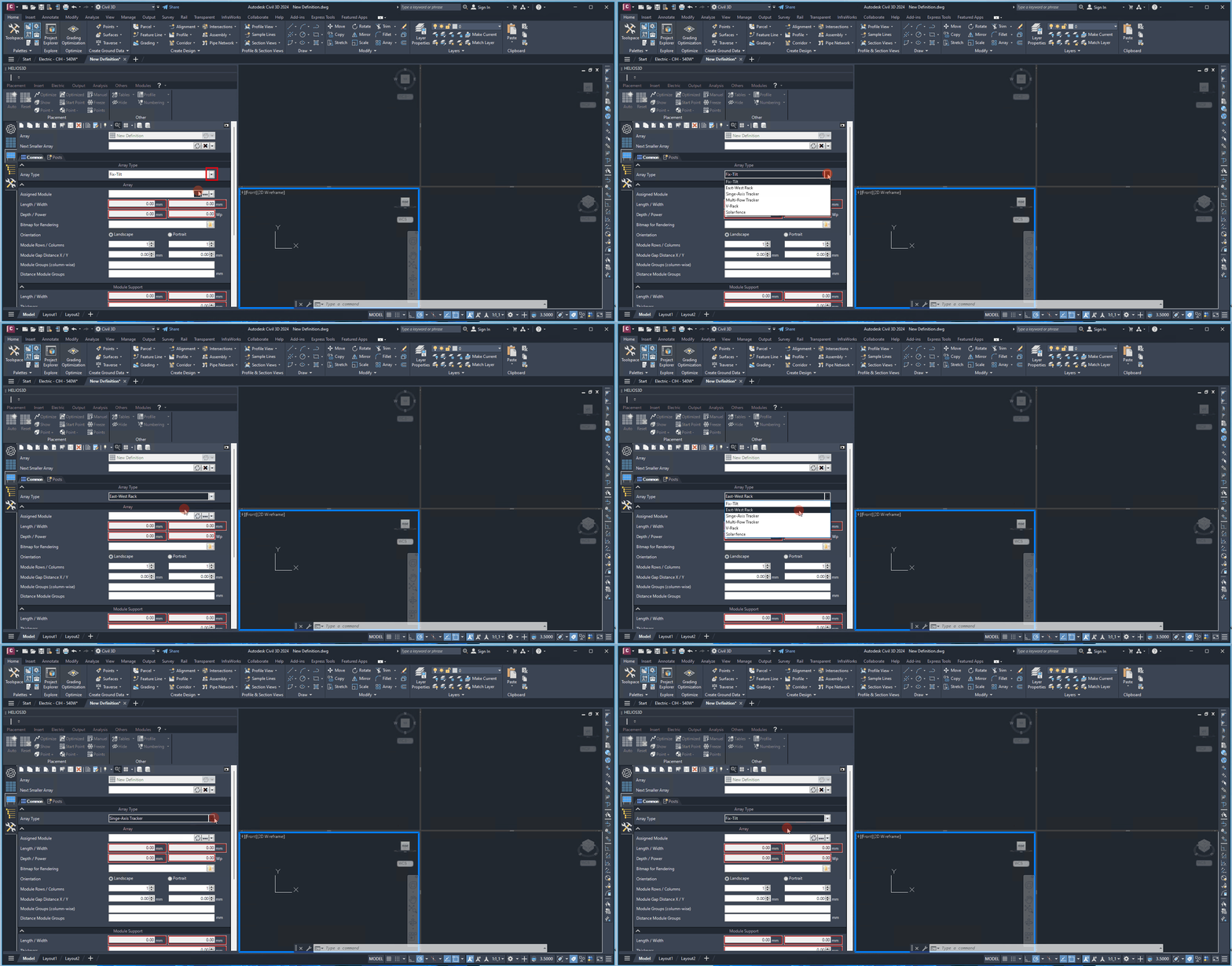
First, you will select the array type, which determines the input fields displayed. Different options will be provided based on your selection, such as those for fixed-tilted racks, east-west racks, or multi-row trackers.
Array Type
Selecting an array type will reveal options specific to that type, such as a rotation axis for trackers.
Choose the array type before editing the remaining parameters. The selected type controls which additional input fields are available and which technical options are relevant for the array definition.
For example, a fixed-tilted rack, an east-west rack, and a tracker may require different geometric assumptions. Therefore, the array type should match the physical mounting system that will be used in the PV layout.
Note:
Changing the array type later may change the available input fields. Review the following settings after changing the type.
Assigned Module
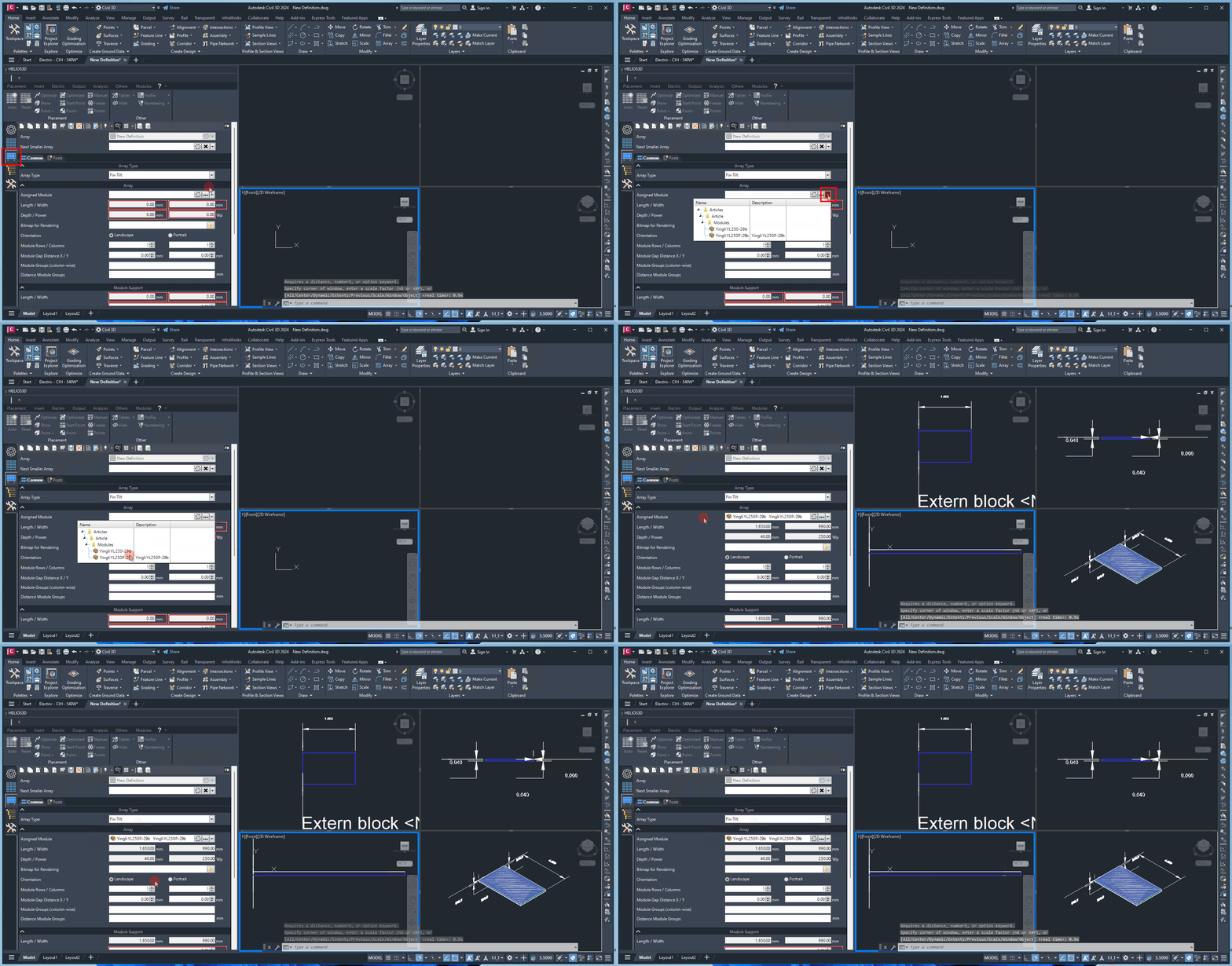
Here, you can either create a new module or select an existing module from the database. When a module is selected from the database, its measurement data—such as „Length,“ „Width,“ „Depth,“ and „Power“—will be automatically displayed. These fields are view-only and cannot be edited in this section.
The assigned module provides the technical module dimensions and the module power used by the array definition. If a module is selected from the database, the measurement values are transferred automatically and are displayed as read-only information in this tab.
Use a database module when the module already exists in the project or company database. Create a new module definition only when the required module data is not yet available.
You can find more information about creating a new module definition in the corresponding section.
Length/Width/Depth
In the default workflow, these values are automatically loaded and locked for editing when a module is selected or created. They are essential for calculating the geometric data in the next section, „Array Panel.“
Length, width, and depth describe the physical dimensions of the selected PV module. These values are used by Helios 3D to calculate the size of the array panel together with the orientation, number of rows and columns, and the configured module gaps.
These values are normally controlled by the assigned module definition and should not be changed manually in the Common tab. If the displayed values are not correct, check the module definition in the database.
Orientation
This setting allows you to define the module’s orientation, which is necessary for the „Array Panel“ calculation.
The orientation determines how the module dimensions are interpreted inside the array panel. Depending on the selected orientation, the module length and width may affect the calculated panel size differently.
Use the orientation that matches the real installation direction of the PV modules on the mounting structure. An incorrect orientation can lead to an incorrect array size and may affect the placement result in the drawing.
Module Rows/Columns
Specify the number of rows and columns in this section. The module matrix is used to calculate the area of the „Array Panel.“
The number of module rows and columns defines the module matrix of the array. This matrix determines how many modules are included in one array and how the modules are arranged within the array panel.
The total module count of the array results from the number of rows multiplied by the number of columns, unless the column count is controlled by module groups. Review the calculated arrangement before continuing with the support and drawing settings.
Module Gap Distance X/Y
Enter the gap distance between modules in the x- (horizontal) and y- (vertical) directions. These gaps directly influence the calculated area of the „Array Panel.“
The module gap distances define the spacing between neighboring modules in horizontal and vertical direction. These values influence the total array panel size and should match the mechanical layout of the mounting system.
Use consistent units according to the project and drawing settings. Incorrect gap distances may lead to an array definition that is too large, too small, or inconsistent with the intended mounting structure.
Module Groups (column-wise)
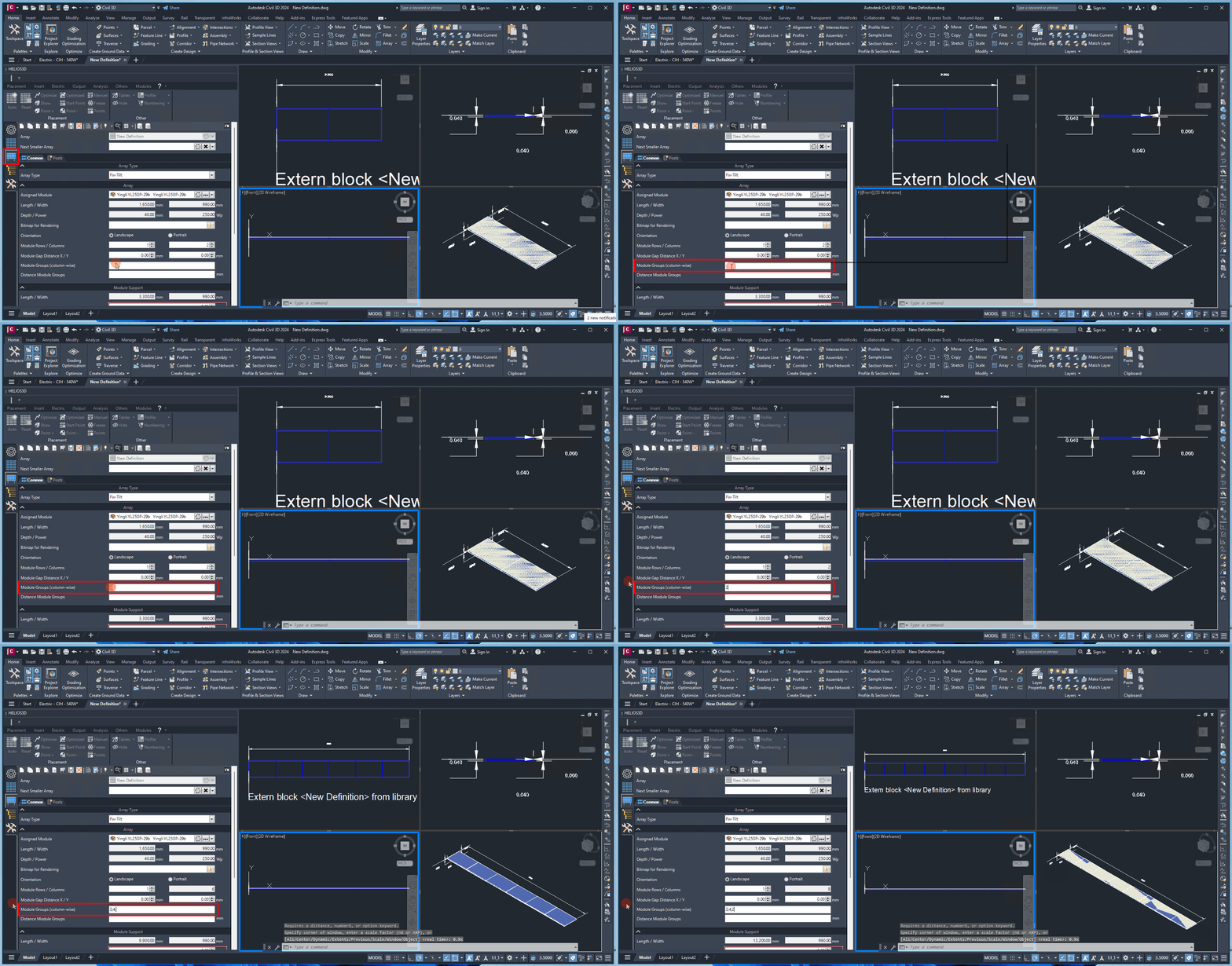
Here, you can define different module groups separated by semicolons and specify custom distances between them below. The total number of module columns, as defined two lines above, will be automatically calculated based on these groupings.
Module groups can be used when the array contains column groups with different spacing between them. Enter the group sizes separated by semicolons. The sum of all group values represents the total number of module columns.
This setting is useful for mounting systems where the module columns are divided into groups, for example because of structural gaps, support positions, or installation-specific distances.
Example:
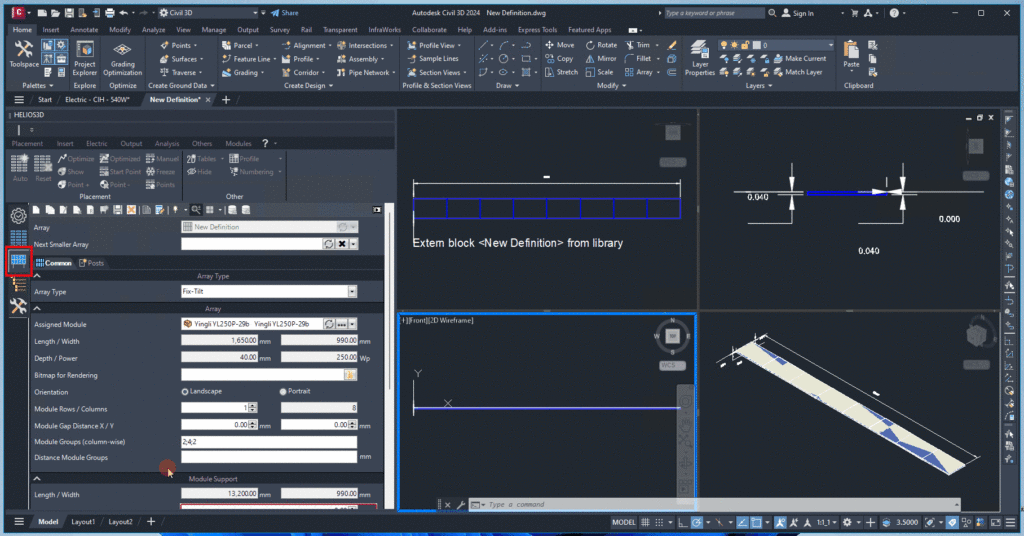
For an array with 8 modules, entering 2;4;2 allows for special distances after the 2nd and 4th modules.
Distance Module Groups
Set the distances between module groups here. You can enter a single value for equal spacing between all groups or multiple values (one less than the number of groups) separated by semicolons.
The distance between module groups defines the additional spacing between the column groups entered above. If one value is entered, the same distance is used between all groups. If several values are entered, the number of distance values must be one less than the number of module groups.
Example:
For three module groups, two distance values are required when unequal spacing is used.
Check the semicolon syntax carefully. Missing values, too many values, or wrong separators may lead to an incorrect group spacing.
Example:
For unequal spacing, you might enter 500;700 to set a distance of 500 units between the first two groups and 700 units between the next.
Typical checks
Before continuing with the next tabs, check the following points:
- The selected array type matches the intended mounting system.
- The assigned module is correct and the displayed module dimensions are plausible.
- The module orientation matches the real installation direction.
- The number of rows and columns represents the intended module matrix.
- The module gap distances are entered in the correct unit.
- The module groups and group distances use the correct semicolon syntax.
- The calculated array panel size is plausible for the selected module and mounting system.
Troubleshooting
If the array panel size does not look correct, first check the assigned module, the module orientation, the number of rows and columns, and the module gap distances.
If the number of columns is not as expected, check whether module groups are used. When module groups are entered, the total number of columns is derived from the group definition.
If group distances are not applied as expected, check that the number of distance values matches the number of gaps between the module groups. For three module groups, two group distances are required when different distances are used.
If module dimensions appear incorrect, review the module definition in the database. The dimension fields in the Common tab are normally view-only when the module is loaded from the database.